
Drop PDF files here
Upload a PDF file to add header and footer
How To Add Header And Footer To PDF – Complete Guide
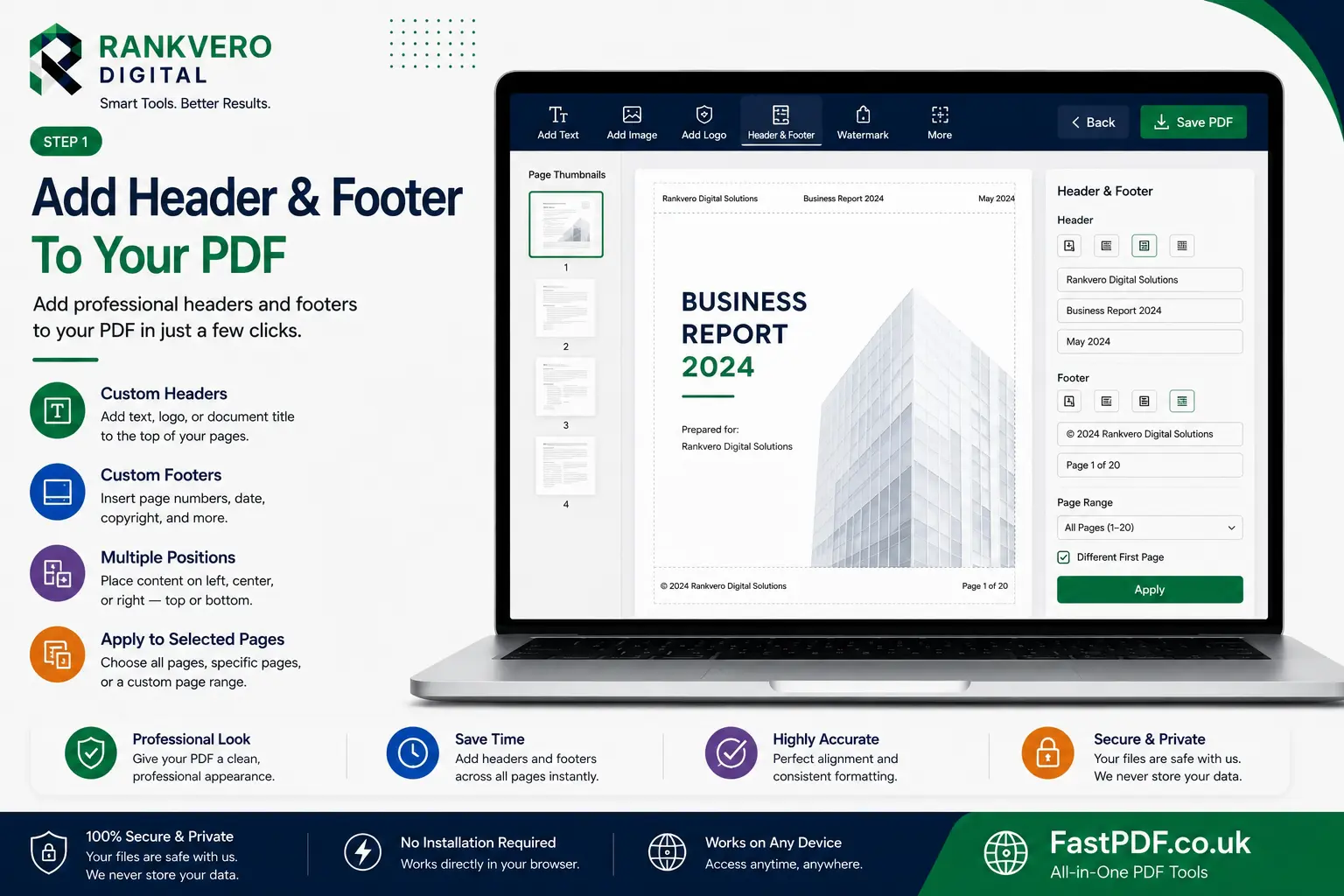
Add professional headers and footers to your PDF documents
Also, sometimes, a PDF needs to look more professional, especially when a clear structure and easier navigation are required. In this case, adding a header and footer can be an effective way to make a PDF appear more organized, targeted, and approachable. For instance, a simple and effective header and footer can help readers understand the nature of the document and, at the same time, quickly access the most important information. Moreover, this can be particularly beneficial for business reports, invoices, research papers, legal documents, ebooks, internal department information, and other professional files.
In addition, by using a suitable PDF editor, you can easily Add Header And Footer To PDF layouts. Furthermore, you can make these changes without affecting the original file layout. What’s more, you can add various details to a document, including page numbers, file titles, dates, copyright information, author names, and other useful details across multiple pages. As a result, your PDF can become more convenient, consistent, and professional.
Secondly, this tutorial will show you how to add a header or footer to a PDF. In addition, we will explain what you can put in a header or footer and how you can change its appearance. Furthermore, you will learn how to maintain a consistent layout throughout your document. Finally, we will also discuss common formatting issues so that you can avoid unnecessary mistakes.
The PDF Header and Footer: An Explanation
Purpose and Common Usage
First of all, a PDF header is generally a section of information located near the top of a page, while a footer appears near the bottom. In addition, both elements help improve document structure and make relevant information easier to find. For example, headers can display document titles, file names, or section information, whereas footers can display page numbers, copyright details, dates, or author information.
Moreover, in most sections, except for areas such as introductions, methodologies, and conclusions, headers and footers generally serve as supporting elements. Therefore, they usually support the primary content instead of becoming the main focus. What’s more, when used correctly, headers and footers can improve navigation and provide helpful background information without distracting readers. As a result, they can make a PDF look more systematic, consistent, and professional.
- For example, a business report may include the company name in the header.
- Similarly, the report title can appear in the header.
- In addition, the page number can appear in the footer.
- Furthermore, the date can be displayed at the bottom of the page.
- Moreover, copyright information can be included in the footer.
- Finally, confidentiality notices can be applied to selected pages.
Notably, if you position the cursor in front of the markup, the page number can appear in the footer. In addition, consistent page numbers and section information can help readers navigate a large PDF more easily. Therefore, headers and footers should add value to the document rather than take attention away from the main content. Ultimately, a simple and consistent design usually provides the best reading experience.
Why Do We Need Headers and Footers in PDF Documents?
To begin with, there are several reasons to add headers and footers to PDF documents. For example, they can improve navigation, strengthen branding, and provide important information throughout a file. Moreover, they can make long documents easier to read and understand.
1. Improve Document Navigation
First, long documents become more user-friendly when page numbers are available. For instance, readers can quickly refer to a specific page in a report, proposal, contract, or research paper. As a result, finding specific information becomes faster and more convenient.
2. Create a Professional Appearance
Furthermore, a standard document header is an effective way to promote your company’s brand. For example, adding the document title, company name, or logo can make a PDF appear more polished. Consequently, the overall presentation can look more professional and trustworthy.
3. Add Important Information
In addition, you can add different types of information to display across multiple pages. For example, these details may include:
- Document title
- Author or editor name
- Company name
- Date
- Page number
- Website
- Copyright notice
- Confidentiality status
- Version number
4. Maintain Document Consistency
Moreover, a well-structured PDF should maintain a consistent visual appearance throughout the document. Therefore, using the same header and footer style across relevant pages can create a unified layout. As a result, readers can navigate the document more comfortably.
5. Support Branding
Finally, businesses can use PDF headers and footers to strengthen their brand identity. For instance, a company name, logo, website, or department name can be included without disrupting the overall design. In this way, the PDF can remain useful while also supporting professional branding.

Step-by-step process to add headers and footers to your PDF
How To Add Header And Footer To PDF Online
Moreover, one of the easiest ways to add headers and footers is to use an online PDF editor with suitable formatting features. Although the interface may differ from one tool to another, the overall process is usually similar. Therefore, you can follow a few simple steps to complete the task.
Upload and Configuration
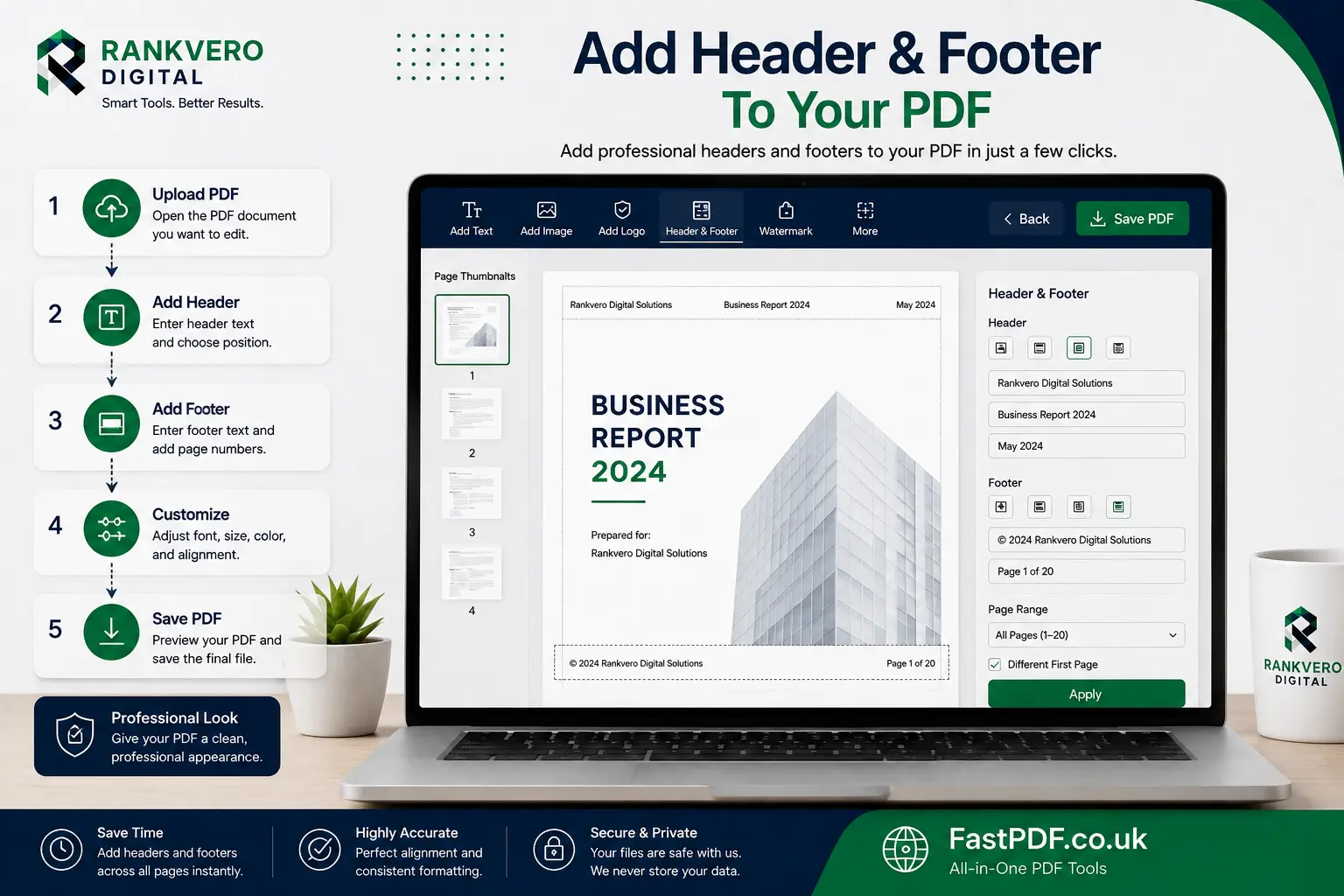
- Step 1 – Open Your PDF — Initially, select the PDF document that you want to modify. Before proceeding, make sure that you have selected the correct version of the document. This is especially important for contracts, financial statements, proposals, and other important files.
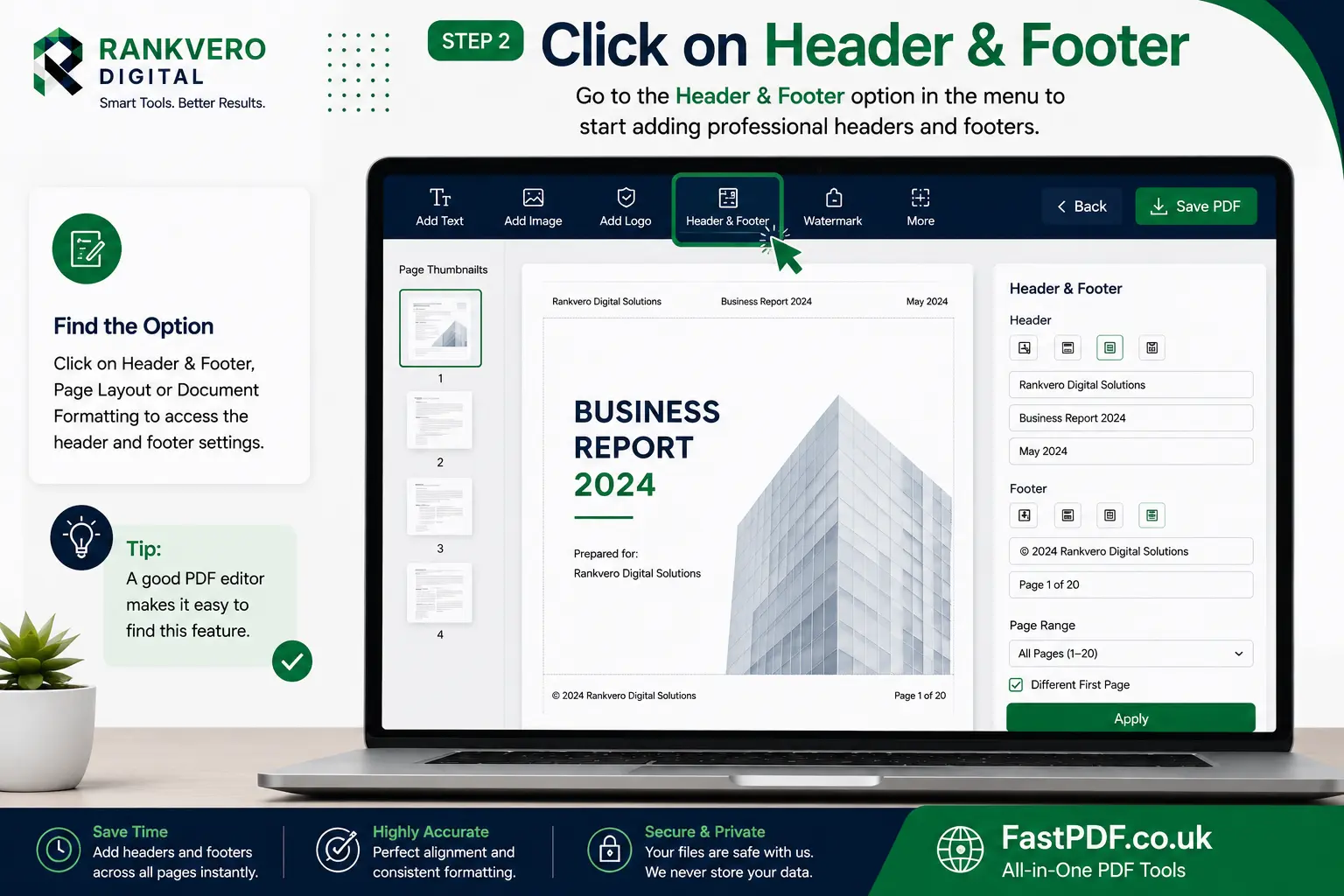
- Step 2 – Open the Header and Footer Tool — Next, select the option for adding a header and footer, page layout, or document formatting. Usually, a good PDF editor makes this feature easy to locate.
- Step 3 – Add Header or Footer Text — After that, decide whether the information should appear at the top, bottom, or both areas of the page. For example, you may choose top-left, top-center, top-right, bottom-left, bottom-center, or bottom-right placement.
Customize, Preview and Save
- Step 4 – Add Your Content — Now, enter the information you want to display. For example, you can add a document title to the header and a page number to the footer. Additionally, some PDF editors support dynamic fields such as automatic page numbers and dates.
- Step 5 – Customize the Appearance — Then, adjust the font, font size, alignment, spacing, and other available formatting options. However, avoid adding excessive design elements. Instead, keep the header and footer clear and easy to read.
- Step 6 – Choose the Pages — Alternatively, you may apply the header and footer to every page, selected pages, a specific range, or particular page types. Therefore, carefully select the appropriate range when working with a long document.
- Step 7 – Preview the PDF — Before saving, always preview the finished document. In particular, check whether the header and footer stay within the margins, remain readable, and do not overlap existing content. Also, verify page numbers and different page orientations.
- Step 8 – Save the Updated PDF — Finally, save the modified PDF after checking everything carefully. Afterwards, open the final file and review several pages to make sure the changes appear correctly.
What Can I Put in a PDF Header or Footer?
In general, the information you use in a header or footer depends on the purpose of your document. For example, business documents may require branding details, while academic documents may need page numbers and author information. Therefore, choose only the details that are useful to your readers.
Common Elements and Their Uses
| Element | Best Use | Example |
|---|---|---|
| Page number | Long documents | Page 12 |
| Document name | Reports and guides | Annual Business Report |
| Company name | Business documents | Rankvero Digital |
| Author name | Articles and research | Author: John Smith |
| Date | Accounts and records | August 2026 |
| Copyright | Published resources | Copyright 2026 |
| Website | Marketing documents | Example.com |
| Version number | Technical documents | Version 2.1 |
| Confidentiality notice | Sensitive documents | Confidential |
| Department name | Internal documents | Marketing Department |
Indeed, the most effective design usually contains only the information readers actually need. For example, if your main purpose is navigation, a page number may be enough. On the other hand, a business document may also benefit from a company name or logo. Therefore, choose your elements according to the document’s purpose.
Page Numbering Best Practices
Another common reason to use headers and footers is to add page numbers. For short documents, basic numbering such as 1, 2, 3, and 4 is usually sufficient. However, formal documents may require more specific formats.
- For example, use 1, 2, 3 for the main content.
- Alternatively, use 1 / 20 to show the current page and total pages.
- Similarly, you can use Page 1, Page 2, and so on.
- For academic documents, Roman numerals may be used for front matter.
- Finally, appendices can use formats such as A-1 and A-2.
For placement, page numbers can appear at the bottom right, center, or left. For instance, center alignment can provide a clean and symmetrical appearance in professional reports. Meanwhile, business and technical documents often use the bottom-right position. In either case, avoid placing the number too close to the edge of the page.
Customize appearance and layout of your PDF headers and footers
How to Use Different Headers and Footers for Individual PDF Pages
Furthermore, not every page in a PDF needs to contain identical information. For instance, a professional report could use different formatting for its cover page, introduction, main content, and appendix. Therefore, using page-specific settings can create a more suitable structure.
- For example, the cover page can have no header or footer.
- Next, the introduction can use the document title and Roman numeral page numbers.
- Meanwhile, the main content can display the chapter title and standard page numbers.
- Finally, the appendix can use its own title and numbering system.
This way, you can create a more sophisticated document layout. Moreover, if your PDF editor supports page ranges, you can apply different header and footer settings to different sections. As a result, large documents can remain organized without using the same formatting everywhere.
The Best Way to Design a Header and Footer
In principle, an effective header and footer should be informative, simple, readable, and consistent. Therefore, focus on useful information rather than unnecessary decoration. In addition, make sure the design matches the overall appearance of your PDF.
Keep the Layout Simple
First, avoid placing too much information in the header or footer. For example, a clean design may include only a document title in the header and a page number in the footer. As a result, readers can focus on the main content.
Use a Readable Font
Furthermore, choose a font that remains clear when scaled down. In particular, avoid decorative fonts for important information. In most cases, an 8 to 11 point font size can work well, depending on the document and font style.
Maintain Adequate Margins
Additionally, keep header and footer text away from the edge of the page. Otherwise, the text may become clipped or difficult to read. Therefore, leave enough space around these elements before saving the final PDF.
Match the Main Document
Similarly, the header and footer should match the existing design of the PDF. For example, a modern corporate document should use a clean and modern header. On the other hand, an academic document may require a more formal style.
Use Consistent Alignment
Finally, avoid moving the header and footer randomly from page to page. Instead, maintain the same alignment unless different sections require different layouts. In this way, the entire PDF can maintain a consistent visual structure.
Header or Footer: Which One Should You Use?
| Feature | Header | Footer |
|---|---|---|
| Document title | Excellent | Good |
| Company name | Excellent | Good |
| Chapter name | Excellent | Good |
| Page numbering | Good | Excellent |
| Copyright | Good | Excellent |
| Date | Good | Excellent |
| Confidentiality notice | Excellent | Excellent |
| Website | Good | Excellent |
| Author information | Good | Good |
Usually, the header is better for navigation and identification, while the footer is more suitable for page numbers and legal information. However, there is no single rule that works for every document. Therefore, the final layout should depend on the purpose, length, and structure of your PDF.
Add Header And Footer To PDF for Business Documents
In business contexts, headers and footers are commonly used in reports, invoices, proposals, presentations, contracts, and internal documents. For example, a business PDF may include the organization name, logo, document title, and contact information. As a result, the document can look more professional and easier to identify.
- For example, the header can include the organization logo, company name, and document title.
- Meanwhile, the footer can include contact information, page numbers, report numbers, or confidentiality notices.
Insert a Header And Footer To PDF for Academic Documents
However, academic papers, theses, research reports, and publications may require specific header and footer formats. For example, page numbers and author details can help readers identify different sections. In addition, academic institutions may have specific formatting requirements.
- For example, the header can contain the research paper title.
- Similarly, the footer can contain page numbers and other required information.
For more extensive academic papers, Arabic numerals are commonly used for the main content, while Roman numerals may be used for front matter. However, you should always check the relevant academic style guidelines before applying a specific format. Therefore, your document can meet institutional requirements for page numbers, margins, and running headers.
Professional PDF document with well-designed header and footer
Add Header And Footer To PDF for Legal Documents
For legal documents, identification and organization are especially important. Therefore, legal PDFs may include several useful details, such as:
- Case or matter name
- Document title
- Edition or version number
- Confidentiality notice
- Page number
- Date
For example, a legal document could use “Confidential Contract Agreement” in the header and “Page 7 of 24” in the footer. In addition, always keep confidentiality requirements in mind. Most importantly, never allow header or footer formatting to interfere with signatures, clauses, tables, or other important legal content.
Place Headers and Footers Without Covering Existing Page Content
Spacing is another important consideration. The header and footer should not overlap with existing document elements. For example, they should remain separate from:
- Main text
- Tables
- Images
- Signatures
- Charts
- Footnotes
- Legal provisions
Furthermore, verify pages with different layouts before finalizing the PDF. This is particularly important when a document contains both portrait and landscape pages. Otherwise, a layout that works on a portrait page may not appear correctly on a landscape page.
Common Errors When Adding Headers and Footers to PDFs
To avoid formatting problems, keep the following common mistakes in mind. In particular, checking the final PDF before saving can help prevent many unnecessary issues.
- First, avoid an excessively large header. A large header can occupy too much space and make the document look crowded.
- Second, avoid using too many elements. If readers do not need the company name, logo, website, phone number, email, date, title, version, and page number at the same time, do not include everything.
- Additionally, check contrast. Although light gray text may look refined on screen, it can become difficult to read when printed.
- Furthermore, check page numbers. Always make sure that the numbers appear in the correct order.
- Similarly, check different page orientations. Preview both landscape and portrait pages before submitting or publishing the PDF.
- Finally, consider the first page. Some documents need a different first-page style. A standard header or footer may make a cover page look less tidy.
- In addition, keep important information away from the edge. This can help prevent clipping and improve readability.
Header and Footer vs. Watermark: What Is the Difference?
Therefore, it is important to understand the difference between these elements. A header or footer contains information at the top or bottom of a page. Generally speaking, a watermark is placed over the page content or in the background. For example:
- Header: Annual Financial Report
- Footer: Page 1 of 50
- Watermark: CONFIDENTIAL
In this way, a business can use a footer for page numbers while using a watermark for confidentiality. However, these elements serve different purposes and should not be treated as interchangeable.
How to Add Headers and Footers to Multiple PDF Pages
For large documents, manually editing dozens or hundreds of pages can take considerable time. Fortunately, an automated PDF editor can apply the same formatting across the entire document. As a result, you can save time and maintain consistency.
The typical workflow is as follows:
Automated Setup for Large Documents
- First, upload the PDF.
- Next, select the header or footer option.
- Then, enter the required text.
- After that, add page numbers automatically where necessary.
Preview, Placement and Export
- Next, select the desired placement.
- Then, make sure the elements appear on all required pages.
- Afterwards, preview the entire document carefully.
- Finally, save the modified PDF.
In this way, automated formatting can be one of the most efficient approaches for very large PDF files.
How To Make Headers and Footers Look Professional
To achieve a professional appearance, consistency is one of the most important factors. Therefore, follow these practical guidelines:
- First, select one or two fonts and use them consistently.
- Next, choose an appropriate font size.
- In addition, keep left and right margins balanced.
- Furthermore, use subtle and professional colors.
- Similarly, align elements consistently.
- Moreover, avoid adding unnecessary decorative elements.
- Finally, match the existing visual identity of the document.
Ultimately, a professional header does not need to be complicated. Instead, simple, readable, and consistent formatting often produces the best result. As a result, readers can focus on the main content while still receiving useful information.
EEAT Considerations for Professional PDF Formatting
From an EEAT perspective, appropriate PDF formatting can support experience, expertise, authoritativeness, and trustworthiness. In addition, careful formatting shows that the document has been reviewed and prepared thoughtfully.
- Experience: First, verify the final PDF after editing instead of assuming that everything is correct. For example, different page sizes, tables, images, and margins can sometimes produce unexpected results.
- Expertise: Furthermore, use appropriate fonts, spacing, page numbering, and overall formatting. As a result, even small details can show that the document has been prepared carefully.
- Authoritativeness: Moreover, clearly identify the organization, author, department, or publisher responsible for the document. Therefore, readers can better understand where the information comes from.
- Trustworthiness: Finally, keep dates, versions, authors, and other document details accurate. Most importantly, remember that headers and footers do not replace PDF encryption, password protection, or access controls.
Frequently Asked Questions
Final Checklist Before Saving Your PDF
Before publishing or sharing your edited PDF, review the following points. In particular, checking the final document can help you avoid formatting problems.
- First, check the header content.
- Next, review the footer information.
- Also, verify that page numbering is correct.
- Furthermore, check the font size and readability.
- Make sure the header and footer do not overlap the content.
- In addition, verify the margins.
- Check both portrait and landscape pages.
- Review the first-page formatting.
- Confirm that the correct page range has been selected.
- Finally, verify copyright and date information.
- Open the final PDF and review it again.
- Make sure all important content remains readable and accessible.
Conclusion
Ultimately, adding a header and footer to PDF files can make documents look more professional while keeping them organized and easy to navigate. For instance, when creating a business presentation, research article, contract, invoice, manual, digital book, or other document, you can use headers and footers to display useful information to readers. As a result, your PDF can provide a better reading experience without changing its main content.
In addition, simple formatting is usually the best approach. Therefore, provide important information quickly, place it where readers expect it, and maintain a consistent style throughout the document. Furthermore, always preview the file before saving it. For large PDFs, consider automatic page numbering, section formatting, company or individual branding, and suitable page ranges. Finally, if headers and footers remain simple, readable, and correctly positioned, they can transform an ordinary PDF into a more polished and professional document.
Related PDF Tools
If you want to make your PDF more professional and easier to manage, you can also explore our Add Watermark to PDF tool to protect and brand your documents. Similarly, you can use Add Image to PDF to insert logos, photos, or signatures. In addition, our Add Blank Page to PDF tool can help when you need extra space in your document. Therefore, these tools can make it easier to edit, organize, and customize PDF files online.