
Drop PDF files here
Upload a PDF file to add color overlay to all pages
Introduction
Add Overlay to PDF online to quickly place text, images, logos, signatures, or watermarks over an existing document without changing its original structure. An overlay can bring you the benefit to apply any extra content over a selected PDF page without rebuilding it. With the option Add Overlay, you can add your content, such as text, image, watermark, logo, label, or more, without affecting the initial document in the background. You can apply it across various business documents, forms, marketing documents, reports, certificates, and other PDF documents. By carefully placing the overlay, you will have added information while maintaining the structure of the original page.
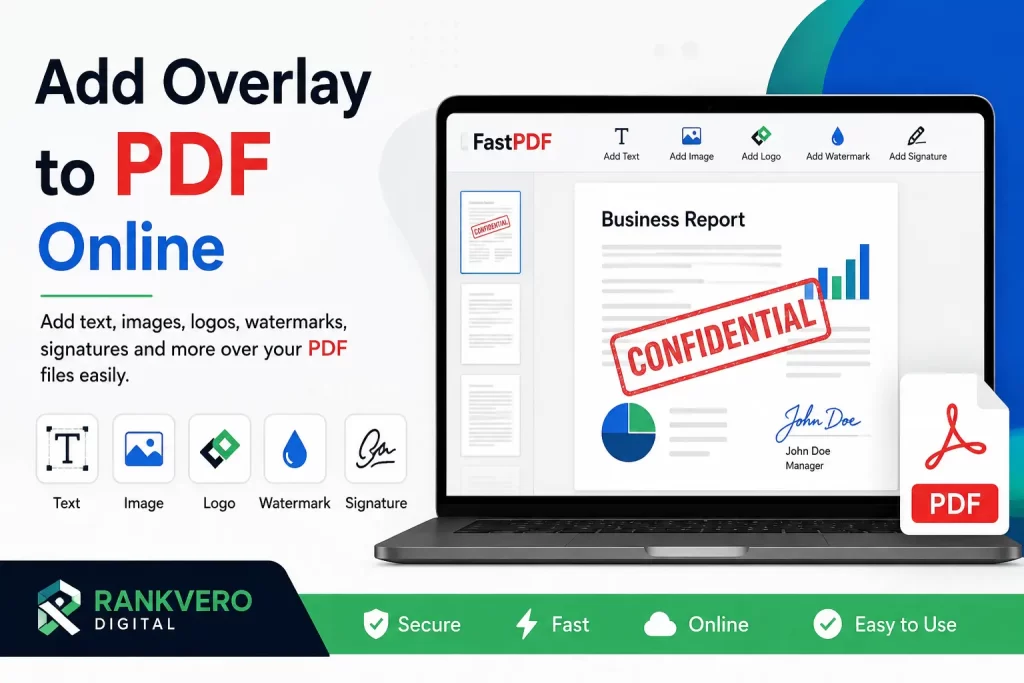
Here is the guide to illustrate you how to Add Overlay to your PDF document, the most popular reasons why you might need to add it to your document, and how to apply this with best placement practices, making your final file neat and clear.
What Do We Mean by “Add Overlay” to a PDF File?
Overlay (or watermark, as the name also says) is a shape or image that appears over the top layer of a existing page on the PDF document. The bottom content layer and any following pages remain perfectly fine under this layer that can be easily managed (moved, reshaped, rescinded).
For example, A Buisness department has a Report a copy of which is sent across different company sites need the “Confidential” word, so the same could apply for adding logos onto marketing leaflets or placing labels on to forms as much as other usages you may have when.
Among various types of PDF Overlays that includes but is not limited to the above; we have here the following:
- TextOverlay, LabelOverlay
- Image Overlay, Logo Overlay
- WatermarkOverlay
- SignatureOverlay
- StampsOverlays
- PageMarkers Overlay
The overlay content could then be relocated in any available position while the position on which you desire your added contents also can fit perfectly over the chosen page.
Why Should You Add an Overlay to a PDF File?
The PDF Overlay feature helps with adding valuable information to existing PDF documents. There are a number of situations where an overlay may be applied;
Common Reasons to Add an Overlay
- Watermarking Adding a watermark over any important documents protects the copyright content from unauthorised sharing. With online editor’s ‘Overlay’, You can apply watermarks whether it may be “Confidential” for official reports, “Private”, “Sample”, etc.. You name it!.
- Document Branding Put your logo or trademark on the PDF while retaining your content! If you have not embedded the image into the origin document and your brand wants to appear on the page – overlay! It helps maintain brand consistency on any paper that may not feature original document brand components
- Adding Text without Restructuring the Content Sometimes, a brief label, a short quote, date or a comment, is missing from a document which was not originally created with space. You might want this to place some brief notes on forms or reports without needing to rebuild entire.overlay’s can be very useful in this case.
- Adding a Signature or a Stamp For formal purposes such as signing contracts, reports, or giving approval, you may require to have an overlay with your signature image, approval signature, a rubber stamp image or the organisation’s official sticker. The visual quality of the stamp should be good for official purpose, just to check again; consult the authority on whether they will approve an image/graphic for that specific purpose or not?
- Highlighting Content If any information or section is of special importance and warrants special attention, you might want to add a highlight over it using overlay shape with transparent backgrounds or apply labels so people who open it have a quick focus on it when you consider highlighting important details in for educational papers , instruction documentation and for formal documents that requires special consideration
How to Add Overlay to PDF File online
If you wonder how easy to make your pdf file professional with content you wanted. An online PDF Editor tool that can do the job for you is highly effective. Although editors’ functionality may differentiate, yet, we explain a typical procedure that everyone can follow below:
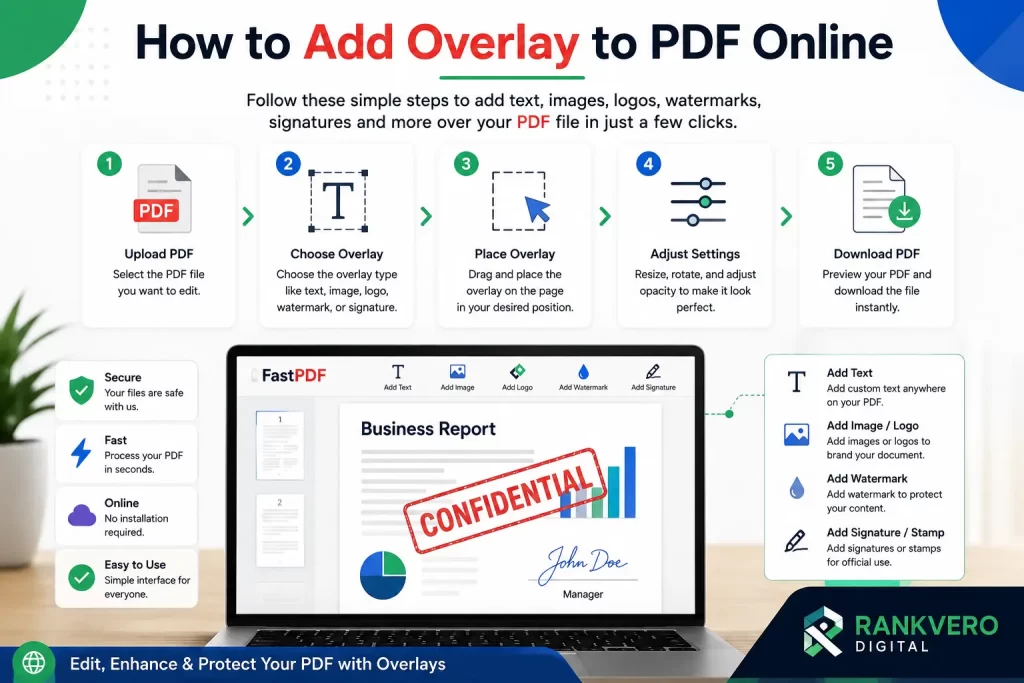
Step-by-Step Process
- Select the Desired PDF: Firstly, choose the PDF file you wish to modify or enhance. Make certain this choice is accurate; remember if the pdf file contains sensitive/ private data then examine the privacy and files’ operation policy of the chosen services before.
- Open ‘Add Overlay’ Functionality: Choose from options the feature you would like to ‘Add Overlay.’ Depending on your choice, this feature might let you insert text, images, shapes, watermarks, or others.
- Choose What to Overlay: Next step includes selection of your content for the page.
- Place the Overlay Precisely: Drag and place the new content onto a location where it can be adjusted with or over the already existing. The position of your selected content should not cover any primary matter unless it is purposeful. Try to place it where you think it fits naturally for most professional feel. There are always chances where this online service provides some useful alignment guides or page margins.
- Resize & adjust Transparently: Adjust size of the content on the page based on requirements. Some editors have the opacity option, by which you would be able to reduce the opacity layer of your content for a more subtle and unobtrusive approach. Usually watermark for example needs a low opacity value, whereas a printed signature might requires a more solid impact.
- Preview the result : It is best to get a quick review of how the entire edited page or other pages appear. Verify size, location, opacity and general readability. Review over several pages of your original pdf document to check if you have applied the overlay uniformly to all pages you wanted!
- Save the Edited PDF file: Make the modifications real, and then download your improved PDF document. Afterward, open up your PDF to view for any final adjustments.
What are the Popular Types of PDF Overlays?
PDF overlay isn’t merely limited to add a text as these digital documents can carry numerous information pieces with them, so it depends on what information you are trying to portray.
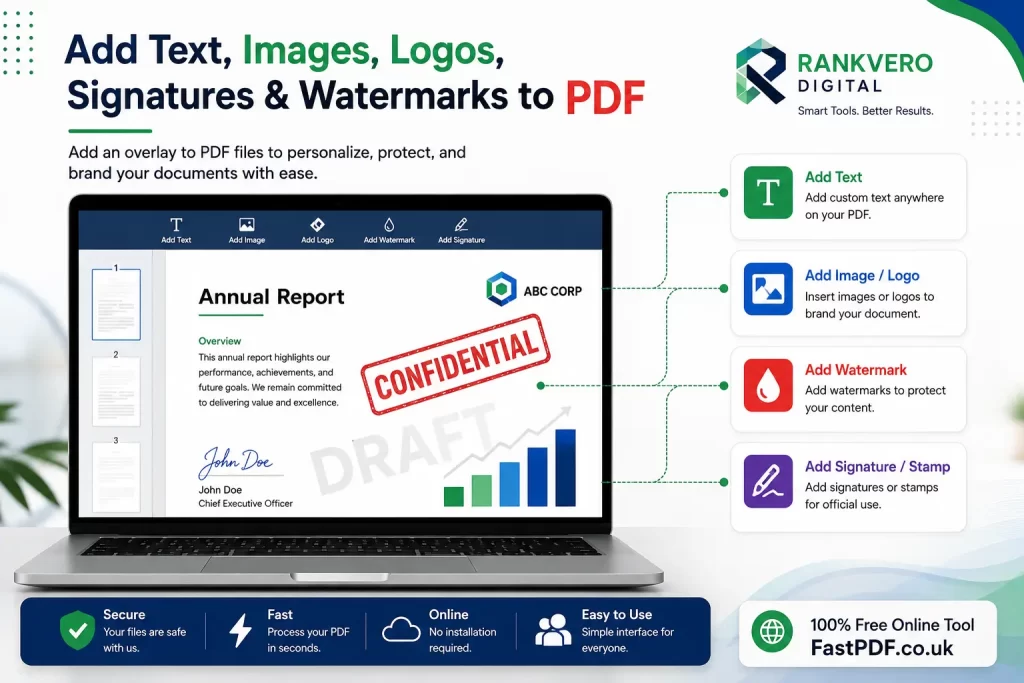
Buisness Papers
Use Overlays to add Company Logos, Confidential/DRAFT watermark and approval stamps onto all your crucial biz document
marketing materials
Present product labels, visual logos, or promotion texts over your design flyers and brochures
Forms
Forms needs to be accurate. Fill a required signature, date, stamp, or label on the pdf form and it gets delivered for usage
Report Papers
Adding Watermarking for Security like ‘CONFIDENTIAL’, Company name, status text like (PRELIMINARY) in a neatly added label or text.
Certificate of Completion or Achievement
Design an appealing Certificate of Achievement for individuals or organizations, Add the Name of individual , Date, Seal and/or Logo without restructuring the template
Various Categories of PDF Overlays
The type of content for overlay is important. It helps to bring the right impact.
| Type Overlay | Purpose | Recommendations |
| text overlay | Notes , labels, reference, short details | Short texts. Easy readable. Font size. Transparent background. |
| imageoverlay | Logo , graphic file, stamp | High resolution image quality. Transparent backgrounds are a pro. |
| water mark | copyright, privacy, preview status | semi-transparent , slanted text at middle of pages. |
| signature overlay | Official sign, personal usage | Accurate placement , close up of signature , no skew lines unless for style! |
| sticker or stampoverlay | approval mark , signature style | good image quality , suitable position , non invasive on content. |
| shapeoverlay | highlight section , emphasize info. | transparent backgrounds , size and position suitable for the context. |
Each item added to your document ought to add value rather than distract from it, therefore make choices judiciously
Best Practice Guidelines to add a non intrusive, high quality overlay on PDF File
The following are useful guides to adding professional and relevant overaly.
Keep it simple
Most often, it’s better to just go with the simplest and most evident presentation. Adding many visual details might end up messing with your overall design by adding up noise. For the most effectiveness, it is always best to include only one visual that communicates an idea immediately.
Match The Document Style.
In terms of look and feel, your added image or text content on PDF documents must look and complement with the document itself. Using the same styles, patterns as well as the font on the paper will surely create a harmonious whole document.
maintain consistency in size andposition
Once that you are happy in position and size, replicate it to other pages on your document if possible. This level of professionality increases the image and also assures that readers can easily find the overlay every time he or she would refer your file for more info
use semi transparent overlay in appropriate situations
As seen above, you can add semi-transparent objects for watermarks or to simply make them less invasive. Just make sure this won’t damage or cover key information needed for the recipient. It helps for transparency that will still leave information in view of the target , however it shouldn’t come in way of information in its entirety
Make Sure No Overlay Covers Critical Information
There’s one thing about overlays: if placed poorly, it has a huge possibility to cover your important content and leave it unreadable. Try to keep an open area where your added item can rest without getting into your content’s toes
Add Overlay to Multiple PDF Pages
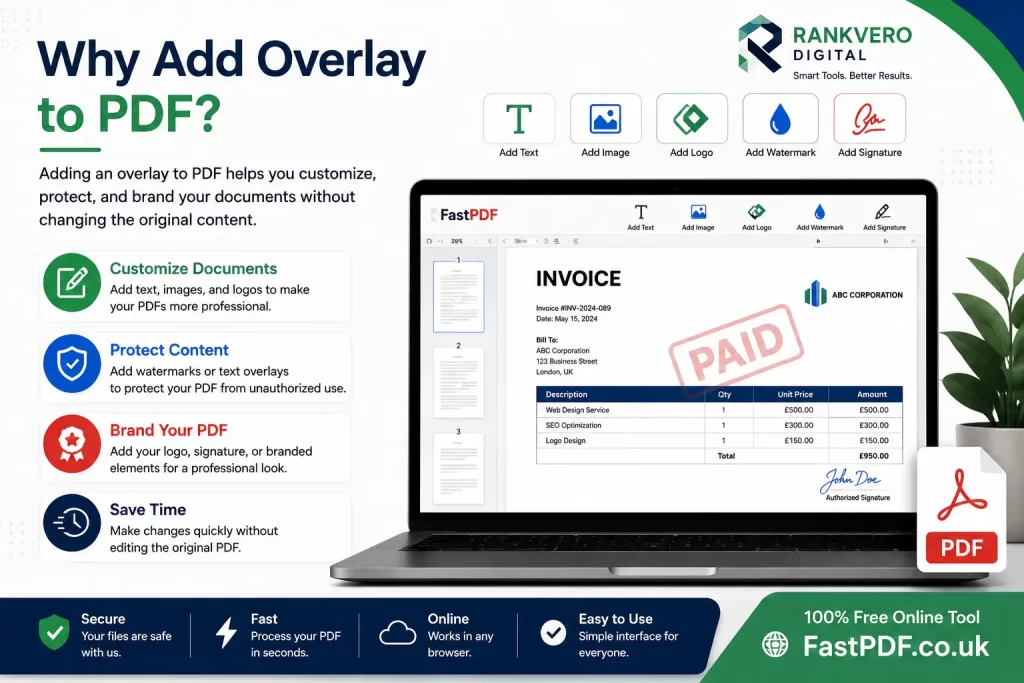
Several PDF editors can superimpose a single overlay on all pages. As a result, this is an ideal way to Add a Logo to a PDF or to place a watermark, status, and similar labels.
For instance, you can use a single ‘Confidential’ watermark page throughout a 20-page document and Add a Company Logo to the top-right hand corner of each page.
When adding an overlay on multiple pages, it is important to check a number of first, middle and last pages once the process has completed as different page styles can make it impossible for a single position on one page to work for another.
Add Overlay to PDF: Manual Editing vs Online Tools
There are a number of methods in which to Add Overlay to a PDF. The appropriate solution will vary according to the contents of your document, how often you edit it and your own technical skill and required level of detail.
| Method | Ease of use | Best for | Skill level |
| Online PDF editor | Easy | Small overlay amendments to a document | Beginner |
| Desktop PDF software | Moderate | Complex overlay documents | Intermediate |
| Word processor | Easy | Original editable files | Beginner |
| Programming tools | Advanced | Automated work-flows | Developer |
Online PDF Editors
Online PDF editors allow you to add watermarks, logos, images, signatures, text and much more to a file. Simply upload a PDF into your chosen editor, add the necessary overlay and Save.
This tool is ideal when the Add Overlay to PDF process will occur on occasion as it means you don’t need to install any software. We advise you to know the privacy policies and what information each system collects when processing documents to avoid uploading sensitive files.
Desktop PDF Software
The advantages of a desktop based PDF editor are that the positioning will remain precise throughout the entire document in the way you desired. Furthermore, you may also have more control over the positioning and transparency of an overlay, and can also place the same overlay on selected pages or more.
This method is more applicable for regular users of PDF editors or when the document requires higher detail. Most advanced PDF editing software comes with a monetary charge and may take time to learn.
Programming Tools
When businesses need to Add a watermark to a PDF document across a number of documents, it can be more time and efficient to create automated work flows. Automated work flows also eliminate many of the common mistakes discussed in more detail below.
It is possible to place an image and text overlay on a single document or any document specified if the work-flow is set correctly.
Common Mistakes When you Add Overlay
If a PDF has a poorly designed overlay, it can easily render the entire document unreadable and may reflect poorly on the document’s creator. We detail some of the more common mistakes to avoid below:
Covering Important Information
An overlay should never prevent people from reading text where important content is placed. Always check that the pages have text content in the area where you wish to place your overlay so it doesn’t obscure the information.
Excessive Opacity on overlay
Watermarks can only truly fulfil their purpose when they are noticeable. Excessive opacity however, will mean the text below is illegible.
Image sizes too large/too small
This is more of an artistic mistake rather than technical but a large image will render a lot of pages unnecessary for viewing when the overlay itself dominates.
Using poor quality images for overlay
If a company logo or digital signature has come from a poor quality source it can instantly make an entire file look unprofessional. Therefore, always try and work from an original, clear scan of your signature or high resolution scan.
Not compensating for differing page layouts
Each of the pages is not always going to present itself in an ideal orientation to be a document that you can simply ‘drop’ an overlay onto. Different pages can include large tables, images, pictures or margins; it is always a good idea to check a number of pages within the document for suitability.
Too many elements in an overlay
A document doesn’t need to be covered with lots of overlays. Just add what is appropriate.
How to add Overlay without diminishing PDF quality
In order to achieve a good quality end product, we advise you to use the best source material that you possibly can in addition to a decent PDF editor. Good sources of material to include in your overlay will include high resolution copies of images as opposed to scans of those images. You should also keep logos at their best, and if the software allows, vector logos would be the best option when you come to Adding an overlay.
However the quality is not solely down to source material, it may also depend on transparency. Highly transparent watermarks will obviously not be seen whereas wholly opaque content will make underlying text illegible and therefore ineffective. This is the trick that most users struggle to master in their Add Overlay to PDF procedure.
Add Overlay for Watermarks
Watermarks are the most common use of the Add Overlay function. A PDF page can host some form of title to specify the documents purpose e.g.
- Confidential
- Draft
- Sample
- Approved
- Internal Use
- Copyright protected
Watermarking is essential as it lets the viewer and receiver know the context of the document even when it may be seen in a number of environments that the original author has no control over.
Add Overlay for Company Branding
The Add Overlay facility also offers companies with another way in which they can maintain branding on their documents without needing to redo them each time an update to their branding is available. A logo can be placed somewhere sensible on each document making them appear to have been retyped when it’s actually just been edited.
Add Overlay for signatures and stamps
When you apply Add Overlay for signatures and official stamps, placing the element correctly is essential. Make sure when adding these, that they aren’t covering essential parts of the document such as names and addresses. Always make sure you zoom in while placing it, and take note not to cover things like dates or instructions.
Add Overlay for Forms and applications
When forms and applications have already been filled out and have then been converted to a PDF, Add Overlay can be used to create ‘Completed labels’ this can apply to:
- Signatures
- Stamps
- Reference numbers
- Dates
- additional notes
Always ensure when adding a stamp to a form as an overlay, that it doesn’t obscure any other parts of the form.
Add Overlay for images and graphics
Pictures may also be inserted to the PDF as an overlay. Should you wish to include a graphic to a document, maybe a logo, diagram, picture or map then Add Overlay is the only means to insert this as the document would otherwise have to be re-typed.
Frequently Asked Questions
Can I Add Overlay to PDF Online?
Yes. There are a wide range of available PDF editors with the ability toAdd Overlay to your document.
What can I add as an overlay?
Almost anything! Watermarks, logos, images, text, signatures, stampers, images, graphics, diagrams and even other diagrams.
Can I add the same Overlay to a number of PDF pages?
Yes, it is possible for many editors to Add the same text to a number of pages in a document. It is however advisable to make sure the placement is appropriate on a few of the different pages within the document, as different layouts on each page can easily obstruct certain elements.
Is It Possible to Add a Transparent Overlay to a PDF?
Yes. Most good PDF editors will have a feature to set transparency settings on your overlay making them perfect for watermarks where they are noticeable but not entirely obstructing of underlying text and images.
Can I Add a Logo as an Overlay?
You can also add a logo anywhere in the document you require, to brand your documents.
Is It Possible to Add a Signature as an Overlay?
It is possible to apply a signature to a PDF, through Add Overlay.
Will it change my original PDF text?
An Overlay will normally place your chosen element on the top layer of the document, but it can obscure original text if not positioned carefully.
Can I use Add Overlay to place a Watermark?
Sure! Watermarks are a popular use case. Transparency can ensure the underlying text is easily readable.
Conclusion
Add Overlay is a useful feature for inserting extra content over existing PDFs without restructuring the document, ranging from watermarks and logos to signatures and labels.
Both on-line PDF editors and offline software can add overlays, and you can automate large batch operations using the application development interface of some programs.
Proper overlays for a PDF
The most suitable PDF overlays appear truly, match the shape perfectly and are neither of those too large neither distracting of its source file material. Ensure you always mask sure certain crucial parts remain covered up.
When it is Add Overlayed thoughtfully, it can be beneficial and enhance the existing file without significant change.
Explore More PDF Tools
Looking for more ways to manage and edit your PDF files? Explore our Add Header and Footer to PDF tool to add professional headers, footers, and page numbers to your documents. You can also use our Add Blank Page to PDF tool when you need extra space in an existing document, or explore more PDF editing tools on Fast PDF to simplify your everyday document workflow. Whether you need to add content, organize pages, or enhance your PDF, our online tools make PDF editing fast and convenient.
Helpful PDF Resources
For more information about PDF standards, document accessibility, and secure digital documents, readers can also explore trusted resources such as Adobe Acrobat, ISO, and the W3C. These authoritative sources provide useful guidance on PDF technologies, document standards, accessibility, and best practices. Referencing reliable external resources can help readers better understand PDF functionality while providing additional trustworthy information beyond this guide.