
Drop PDF file here
Upload a PDF to add custom page labels (Roman numerals, prefixes, etc.)
Add Page Labels to PDF – Complete Guide
Add Page Labels to PDF easily to organize lengthy documents, improve navigation, and help readers quickly find specific sections. If you want to add page labels to PDF files for better navigation, you’re in the right place. For multi-section documents such as reports and manuals, clear navigation is essential for a user-friendly experience. In fact, one effective method for improving PDF navigation is to add page labels. These consist of a variety of numbers, letters, roman numerals, or special prefixes assigned per page segment. This method doesn’t physically change the document’s contents. Instead, it aids navigation purely within the digital realm, since PDF viewing software often uses page labels for content browsing.
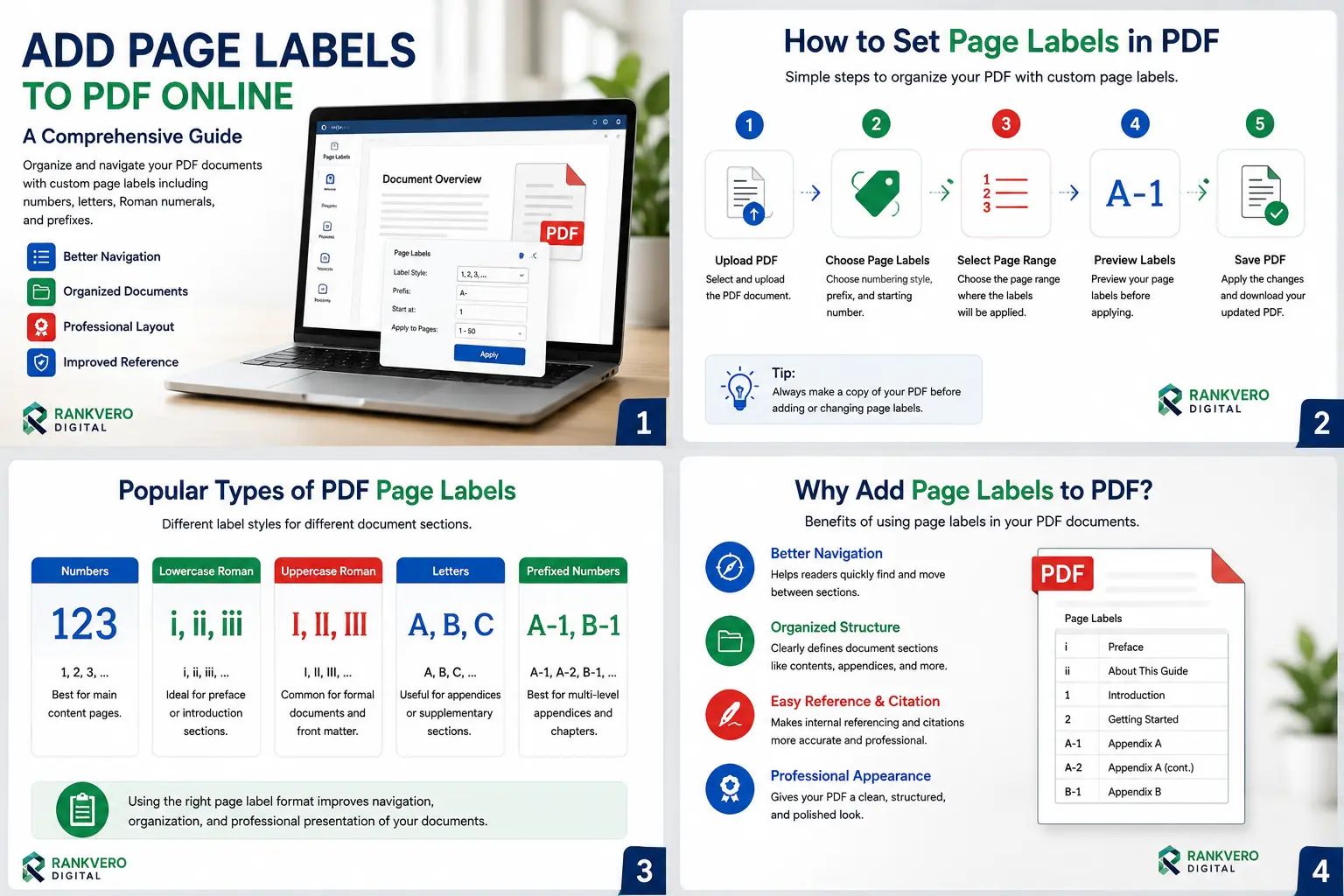
For instance, document types range from ebooks and academic papers to manuals, scanned files, and legal records. For all these lengthy documents, a coherent and descriptive labeling system proves invaluable.
In this guide, we’ll explore exactly how to add page labels and which numbering systems suit each context. We’ll also cover how to assemble a professional PDF layout.
What are PDF page labels?
PDF page labels, at their core, are simply labels assigned to the pages of a document as identifiers. Specifically, these labels can take the form of numbers, roman numerals, letters, or text-prefixed numbers, and even simple combinations of multiple types. For example:
- I, ii, iii can be set for preface/introduction pages, while 1, 2, 3 could represent pages of the actual paper content.
- For appendix pages, meanwhile, it could be A-1, A-2, etc., or even multiple appendices like B-1, B-2, etc.
In particular, it’s worth understanding that these labels are actually a piece of metadata that resides inside the PDF framework, not visual text printed across the pages. This lets PDF viewing apps show a reader’s location more accurately as they navigate through document sections.
Why add Page labels to PDF document?
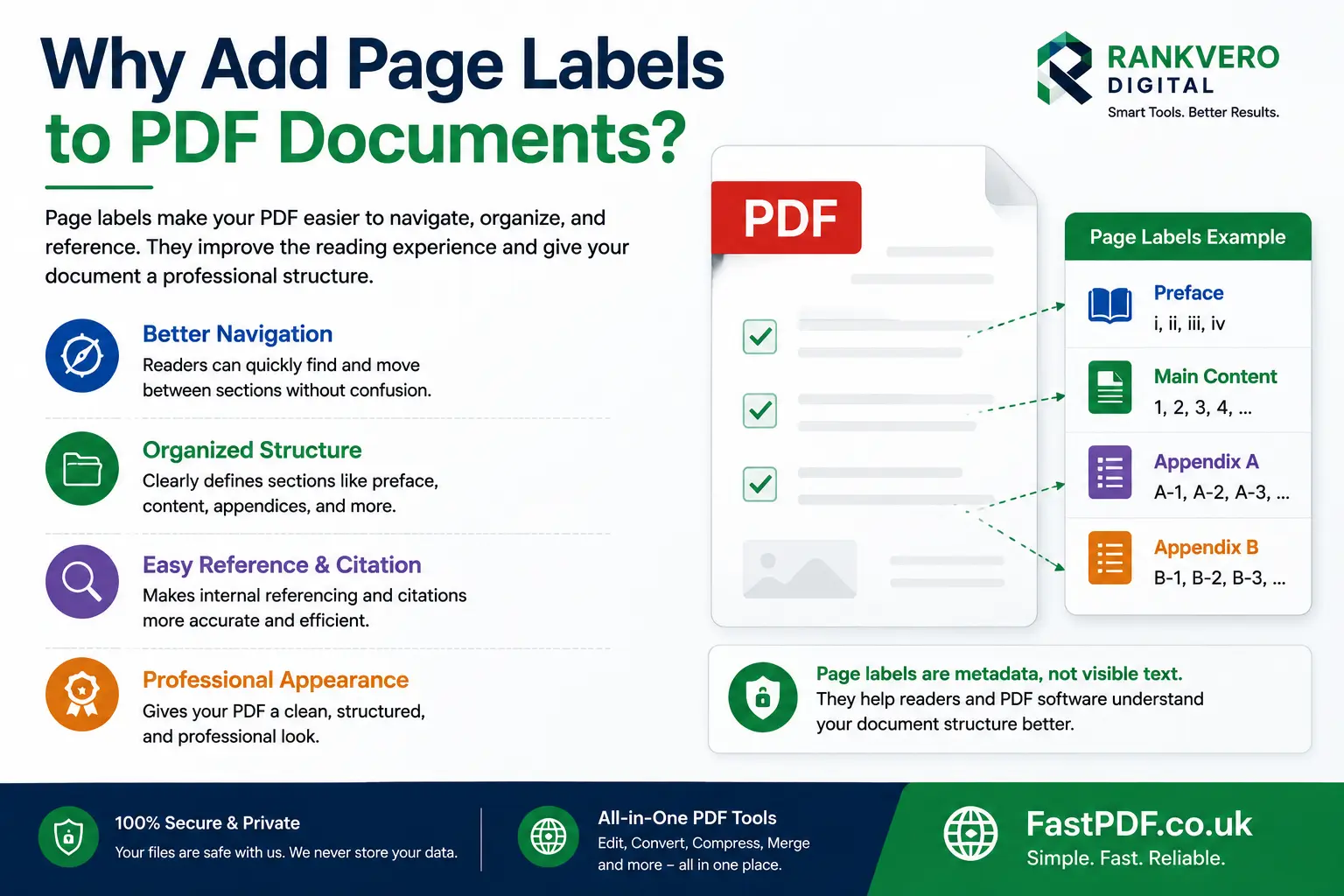
With a structured page labelling convention in place, documents become much easier to navigate, organise, and cite.
- Better PDF navigation — A uniform sequence like 1, 2, 3 can be challenging for documents that have many different sections of information. For instance, unique page labels such as (A-4) instantly help readers know that a page’s contents relate to an appendix.
- Document organisation and reference — In some large documents, like ebooks and reports, page layouts may vary significantly from start to finish — for example, a pre-cover page, table of contents, body, page index, and finally an appendix section. When it’s well designed, this structure becomes much easier to manage. A useful page label such as Page (D14) is far more convenient for internal referencing than a page number alone, since it clearly identifies the specific appendix or section it belongs to.
- Professional document arrangement — A structured labeling scheme gives any extensive PDF, particularly in the legal, technical, and scholastic disciplines, a tidy, expert, and polished look.
What’s the difference between Page labels and Page number?
Though related to chapter title pages, page labels must not be confused with ‘page numbers,’ the text printed visually on many PDF pages. Page labels are metadata within the PDF, while the printed page number is visual content on the page itself. So, even after you set ‘i’ as a label for your introduction, ‘i’ can still show up physically as printed content. You can opt out of this if you prefer.
For more comprehensive detail.
Check the differences:
| Feature | Page Labels | Visible Page Numbers |
|---|---|---|
| Type | Metadata (internal) | Visual content (printed) |
| Purpose | Navigation, section identification | Physical page reference |
| Visibility in viewer | Shown in navigation panel | Visible on page surface |
| Affected by editing | Can be changed without altering page content | Requires separate editing |
It’s also important to clarify that altering page labels will not automatically amend a page number that’s physically printed within your document.
How to Set Page Labels to Your PDF Document On The Go
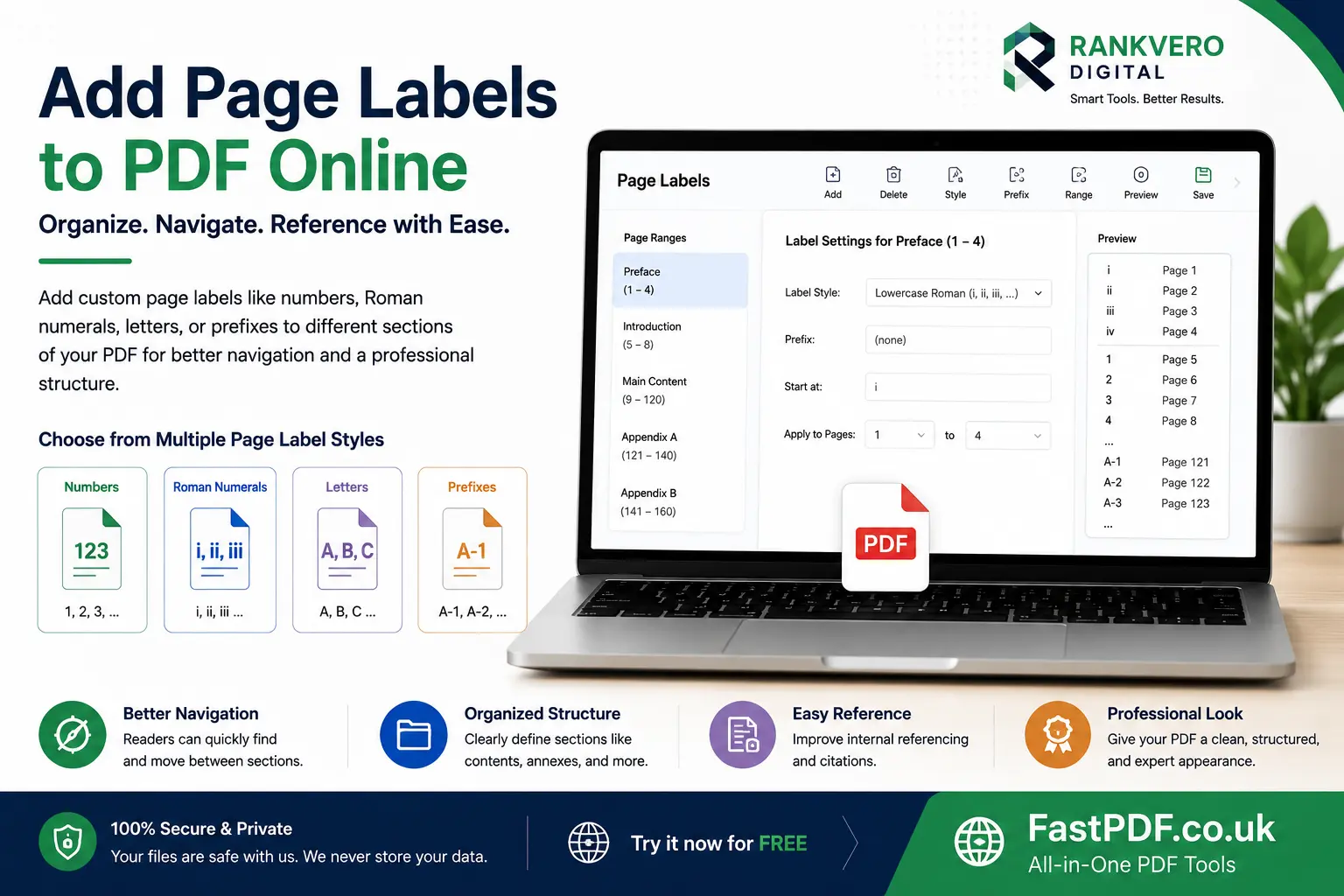
Setting up your labels mainly comes down to how the system itself is laid out. Depending on the document type, labels can apply to one or more page ranges, or run from start to finish. Naturally, different PDF editing tools offer their own version of this feature. The underlying method stays largely the same, with only slight differences in the display.
- Select the file: The first step is choosing the document you want to apply this new page structure to. Then, always make a copy beforehand. For sensitive documents, check the site’s terms and conditions on file privacy before uploading to any online PDF tool.
- Access the page labeling feature: After entering the PDF editor, you’ll find the option to add or change the document’s ‘Page Labels.’ You’ll need to decide on the following, based on your requirements:
- Numbering style: Choose the series you require.
- Starting number: the integer you require it to start with.
- Page range to affect
- Page prefixes : e.g. “Chapter 2-” and the list goes on …
- Specify the affected pages: Indicate whether the layout should start at a definite point or apply to your entire document. For example, you can set a ‘start from page no.’ and ‘end on page’ range.
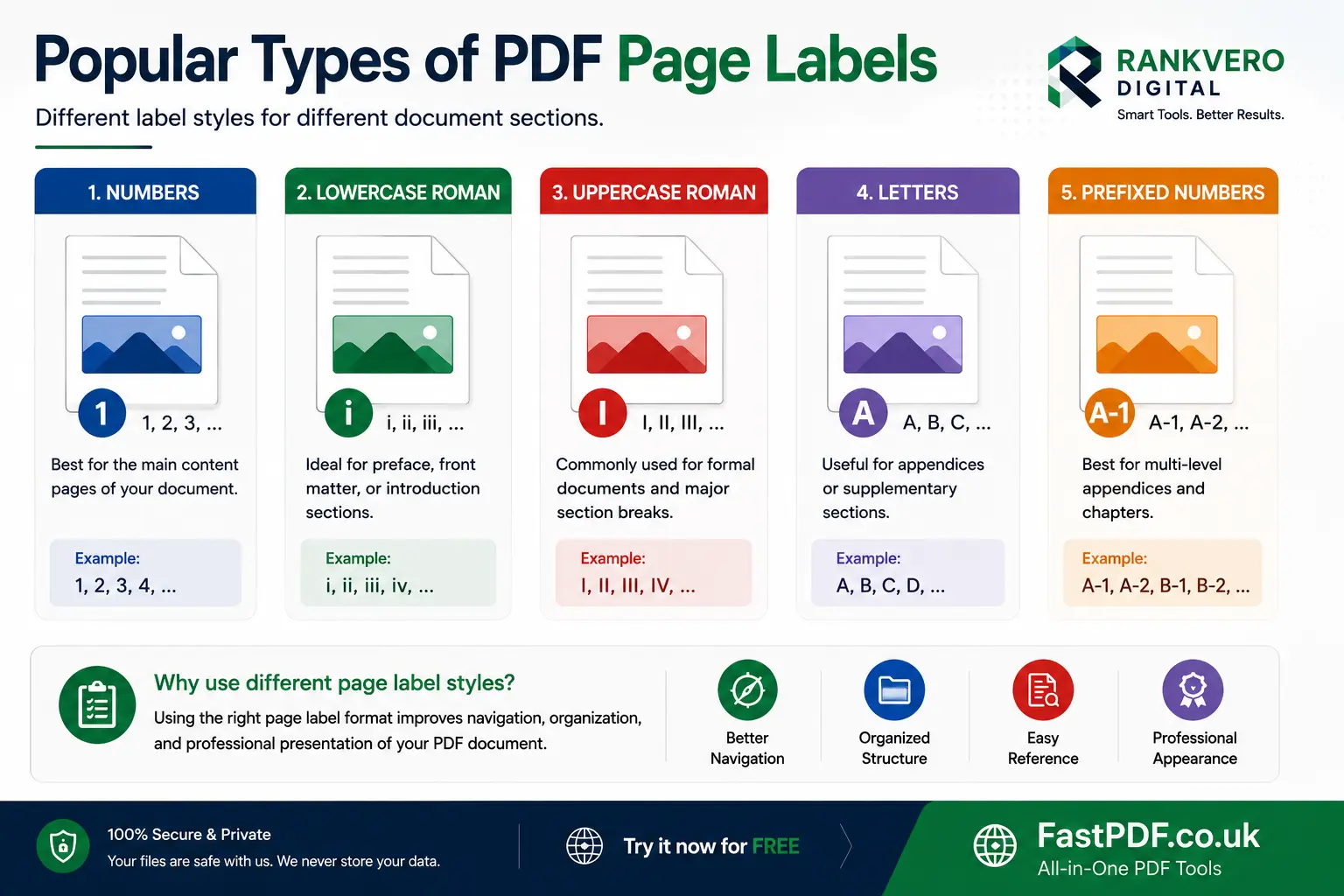
- Choose format: Next, pick a convenient style of numbering for the pages of the section. Common formats include:
- 1, 2, 3, …
- i, ii, iii, …
- I, II, III, …
- A-1, A-2, A-3… Etc. (prefix labels)
Finalizing Your Page Label Settings
- Set start number: Next, define the number where the format should begin. For example, in my case, ” i ” starts section one, while section two starts at 1, since the previous section ends in the Roman i form.
- Apply prefix (optional): A prefix gives a section extra identity. This is especially handy for large documents with distinct sections, like different chapters of an ebook or different legal sections of a case file. A designation such as “Ch 2-1, Ch 2-2….” or “Part A, Item 1….” can serve your needs well.
- Preview the document: Once you’ve finished the labeling strategy, it’s wise to check a few pages from the start and a few from the middle. This confirms they match your expectations. You should also browse the PDF using the navigation panel to test how the labels display, a feature that would be even more useful if a visible representation of the labels could be added as well.
- Save your modified PDF: Finally, save the modified PDF file and download it to your machine. Open it using a proper PDF reading tool, such as Adobe Reader or Chrome/Firefox, since these programs make use of page labels.
Table of Optimal Page Label Formats for Varying Document Forms:
| Document Form | Best suited label format | Example of format Used for |
|---|---|---|
| Academic Dissertations & thesis | Roman numbers followed by normal Arabic numbers (e.g., I-viii, 1-200) | I–viii, 1–200 |
| Business Reports | Ordinary numbers (1-50), Prefix followed by number for sections | A-10 |
| Technical manuals | Ordinary arabic number often followed by prefixes e.g., (1-200, Chapter A, Section 1-5) | 1-200, Chapter A |
| Legal Cases | A section prefix that starts with Chapter, part number etc.(Chapter 1 – Item 1.1, Ch2 – Item 2.1) | Ch1-Item 1.1 |
| eBooks | a combination of Arabic & Roman I to X, and then normal numbers from 1 onwards | I–X, 1–… |
| Scan of historical archives | use descriptive prefixes based on page collection or the archiving category | OldLetterCollection_A3A4 |
Add Page Labels for Educational and Scientific Document(s)
The purpose of assigning labels in this format, for example in research papers and theses, is to differentiate the preparatory sections, the actual research report, and the final appendices. A common style to use is introductory pages (i, ii, iii…..) followed by the main chapters of the thesis (1, 2, 3….),
and finally the appending sections, or appendices.
That said, be aware that your own organization’s or university’s guidelines may require a particular style for dissertation page labeling. Be sure to check them beforehand.
Add Page Labels to Business documents and Reports
Many business reports include sections with diverse information, ranging from general summaries to financial details to appendices, each requiring its own designation. One practical approach is to number the main process from start to end using a standard layout, such as 1-50. Then label the appendix separately as i-x, so that section is easier to identify. From there, you could use A-1 to A-8, or another series based on your needs.
How to Add Page Labels to Legal and Technical Documents
Large legal files frequently include attachments, supporting records, evidence, and exhibits. In these cases, page labels can help identify and reference each section.
Here are examples of separate labels used when documents are broken into exhibits:
- A-1, A-2, A-3
- B-1, B-2, B-3
- C-1, C-2, C-3
Likewise, these labeling methods can apply to technical manuals for referencing appendices, reference documents, or support materials. That said, the organization’s own document standards will typically govern the exact page label format.
How to Add Page Labels to Scanned Documents
When scanning documents from multiple sources, there may not be a consistent numbering system. Some pages may even lack page numbers altogether. In these cases, a good structure can make these labels especially useful:
Use prefixes to denote a particular record within the scanned set of documents. For instance, you might use the following labels on scanned files:
- A1-, A2-, etc.
- B1-, B2-, etc.
Before changing your labels, check the original document. Avoid altering anything that might prove useful if you need to refer to those particular page numbers later.
How to Add Page Labels to Large PDFs
The benefits of a navigation system are usually most noticeable in large, complex PDFs. While a ten-page document might not need specific page labels, a 300-page PDF would benefit greatly from section-based labels. For example:
| Section | Label Style | Example |
|---|---|---|
| Introduction | i-v | i, ii, iii, iv, v |
| Main content | 1-120 | 1, 2, … 120 |
| Appendix A | A-1 – A-15 | A-1 … A-15 |
| Appendix B | B-1 – B-10 | B-1 … B-10 |
This makes it much simpler to identify relevant material during the viewing process; planning this before adding page labels will also help ensure efficient progress.
Comparing Manual Editing vs Online Page Label Tools
| Method | Ease of Use | Best For | Skill Level |
|---|---|---|---|
| Online PDF tool | Easy | Quick changes | Beginner |
| Desktop PDF software | Moderate | Advanced editing | Intermediate |
| PDF programming library | Advanced | Automated workflows | Developer |
| Source document editor | Easy | New documents | Beginner |
Online PDF Tools
So what are PDF bookmark editors? Online PDF editors offer a no-install way to add page labels to your PDFs. For example, simply upload your work, choose the page ranges the labels should apply to, and select how the page numbering should look. The tool then produces the revised file for you to download.
It’s ideal for straightforward, one-time document edits that call for unique page numbering.
Keep in mind that online PDF tools should offer strong security and privacy settings, especially when you’re handling personal or sensitive papers.
Desktop PDF Software
Desktop PDF software offers the flexibility and detail needed to carefully curate a document’s navigation system. Often, these tools let users define custom ranges as well as numbering styles. As a result, this makes them ideal for anyone who frequently makes in-depth edits to large documents.
PDF Programming Libraries
Many organizations, as well as individual users working with large numbers of files, can automate the process of labeling their pages using programming libraries. A document creation system is a practical example of this. For instance, you could configure the program to always use Roman numerals for the preliminary sections and Arabic numerals for the body.
Common Errors When Adding Page Labels
Several common mistakes could make an otherwise meticulously-planned navigation structure difficult to interpret.
- Incorrect Page Range – If you add page numbers to the wrong set of pages, or skip a section entirely, your navigation system won’t be completely functional. So, make sure to check the first and last page of every section.
- Incorrect Starting Number – If the first page of your main content or an appendix isn’t meant to start at “1,” it’s easy to make a mistake. So, every time you create a new section, confirm the exact starting number you want for that section.
- Differentiating Between Labels and Numbers – Page labels in a PDF don’t necessarily update the visible page numbers printed in your documents. Instead, treat them as two separate systems. Only edit the visible numbers if you also intend to change the physical number that’s printed.
- Too Many Types of Numbering Formats – Different sections within a document have reason to include different types of numbering, but too many formats make a document confusing to use. Therefore, stick to a basic style of numbering per section, and only deviate if you need to use a markedly different label system.
- Not Testing the Final PDF – Once you finalize your labels, view the finished PDF file on your computer, then navigate through several sections using your new page labels to confirm they’re functioning correctly.
How to Add Page Labels Without Affecting Visible Content
Page labels offer a beneficial property: they make your documents easy to navigate without changing anything on the pages of your PDF file. This is especially useful for a final document you’d like to make easy to reference, without altering the visible text, images, or existing printed page numbers. Keep in mind this won’t change the numbers actually printed on a page; for that, you’d need a separate page numbering or PDF editing function.
Best Practices When Adding Professional Page Labels
When adding labels to documents that will be seen by other users, keep these tips in mind:
- Choose and Plan Before You Assign Labels – First, before you add any labels, determine where your different sections are located within the document. What are the page numbers where one section ends and the next begins?
- Use Meaningful Prefixes – Choose an obvious prefix (as an example, “A-” for a appendix, or “EX-” for an example). Avoid numbers that don’t have a name or meaning to separate sections, like “79-“.
- Be Consistent in Your Numbering – Keep a consistent number style throughout each section. There’s no need to flip-flop between Roman numerals and Arabic numbers in the middle of your introduction.
- Confirm Section Boundaries – Pay special attention to the transition points between sections. The boundary between your prefatory pages and main document content is especially critical, as is the boundary between two individual files within a larger PDF.
- Test Document in Various Viewers – Different PDF readers can interpret navigation information differently. While this shouldn’t cause major issues, it’s still worth checking how your labels appear across multiple programs.
FAQ
Yes. PDF viewers can add page labels and assign numbering styles to specific page ranges.
Yes. Roman numerals such as i, ii, iii are often used for prefatory pages.
Yes. Most PDF viewers that let you add page labels will allow you to add different conventions to sections.
Yes. Page labels can be customized to start at whatever number you wish to have in that section.
No. Page labels are only part of the PDF navigation system and won’t change the visible page numbers printed on a document.
Yes. Label prefixes are useful for indicating specific documents or sections.
Generally, no. Page labels are internal PDF code. Instead, they are used for navigation by the PDF viewer; they don’t inherently print on a document.
Page labels don’t work in certain PDF viewers, or the document may not have saved with the correct page label configuration. So, try opening it in a different PDF reader.
Final Checklist Before Sharing
Be sure to verify these last few things prior to distributing your PDF:
- Check the chosen PDF file.
- Verify section divisions.
- Ensure page ranges are correctly identified.
- Confirm the correct numbering style is assigned.
- Check the starting page number of each section.
- Review all prefixes for accuracy.
- Confirm that each section transition is smooth.
- Verify that visible numbers remain unaffected.
- Click through a few pages of each numbered section.
- Open the new PDF in an appropriate viewer.
- Check the edited PDF file one last time before sharing.
Conclusion
Assigning page labels to your PDF documents makes them easier to navigate, more reference-friendly, and far more organized. Roman numerals work well for introductory elements, while Arabic numbers suit the main body content. Prefixes are also effective for documents like exhibits or appendices. The easiest and most straightforward way to make a change like this is to first plan your document’s sections. Then make sure the numbering within each section stays consistent.
From there, online PDF tools can help you make simple changes quickly. Alternatively, other editing software or programming libraries offer more intricate options.
It’s also worth remembering that labels aren’t printed numbers — they exist only within the PDF’s navigation system. However, when done effectively, they can streamline the reading experience considerably.
Helpful PDF Resources: Additionally, for more information about PDF standards and document accessibility, you can explore trusted resources from Adobe Acrobat and ISO. These authoritative sources provide useful information about PDF technology, document standards, and professional digital document practices.
© 2026 · FastPDF · Page Label Guide