
Drop PDF file here
Upload a PDF to edit its metadata
Introduction
Add Metadata To PDF files to aid identification, organization, search and management. The metadata of a PDF file contains valuable information such as its title, author, subject, keywords, creator, and creation date. You’ll get advice on how to add metadata to a PDF online, what metadata fields to use and how to ensure that your PDF properties remain accurate and professional.
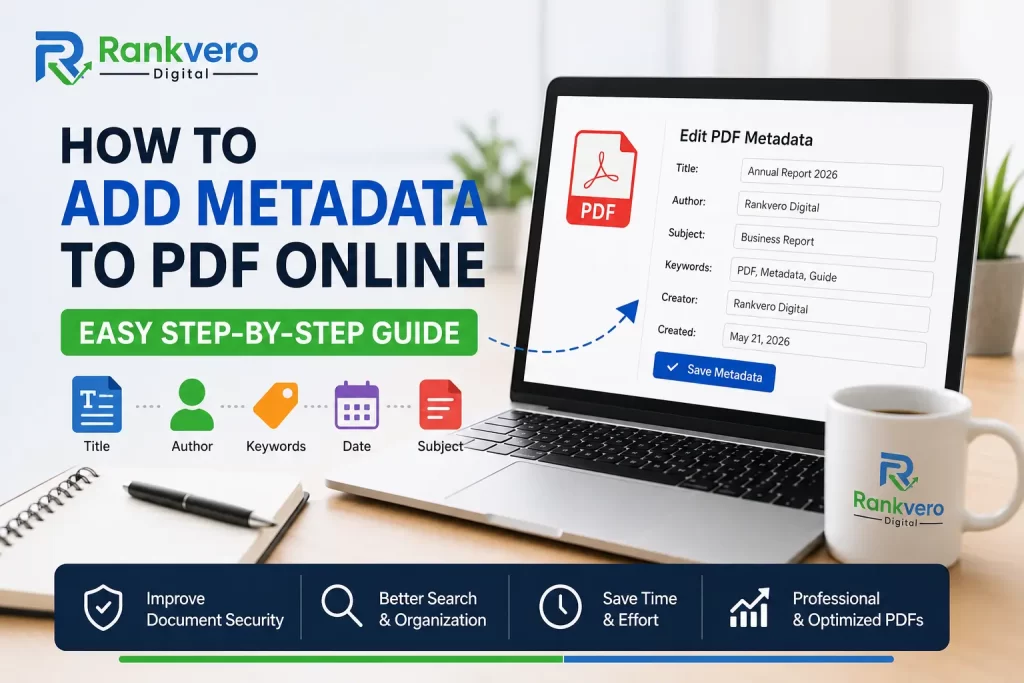
PDF metadata is information that’s stored ‘under the hood’ within your PDF file. It isn’t usually visible to readers at a glance, but is picked up by search tools, management systems, and software apps. To that end, relevant, accurate meta data means documents are easier to categorize, sort, manage, and identify.
Specifically, this guide explains how to Add Meta Data to a PDF, which pieces of metadata to include, why putting information in is beneficial, and what it takes to add ‘clean’, use-aware document properties to your PDF.
What Is PDF Metadata?
PDF metadata is a string of information within your PDF that accurately describes the content and creation details of the file. However, metadata typically won’t show on the page itself – instead, it resides in the document properties area.
Common PDF meta data parameters include:
● Title of the document
● Author/creator of the document
● Subject of the document
● Keywords that relate to the topic
● Program that created the PDF (Creator/Producer)
● Document’s date of creation
● Date the document was last modified
For example, take this business report PDF, its meta data would look something like:
Title: Business Review – 2026 Edition
Author: Global Corp Inc.
Subject: A review of Global Corp’s annual business performance.
Keywords: Business report, performance metrics, company annual, global report
The visual document contents aren’t altered, but these bits of data do serve a vital purpose.
Why Add Meta Data to a PDF?
Adding this extra layer of information to your documents can streamline organization and significantly improve workflow.
Improve Document Identification
For instance, giving a document a meaningful title will make it stand out amongst generic file names. Whether working in an office environment where thousands of digital assets are kept, or when simply sorting your personal documents, having a distinctive description of content is essential.
Improve File Organization
Teams and businesses will benefit enormously by accurately tagging every document, whether it’s marketing content, policy documentation, research papers, or client-related items. As a result, author, subject, keywords and content title combine to make a complete catalog.
Support Document Search
Some document search tools can extract meta data information to further refine searches, ensuring users find the right content faster. As a result, adding relevant keywords to your PDFs will mean your content is easier to find through these systems.
Improve Professional Presentation
A professionally produced PDF shouldn’t just look good – it should be functional beyond what’s apparent on the page. In fact, document properties are often the first thing users see when exploring your cataloged documents, making a descriptive file all the more impressive.
What Metadata Can You Add to a PDF?
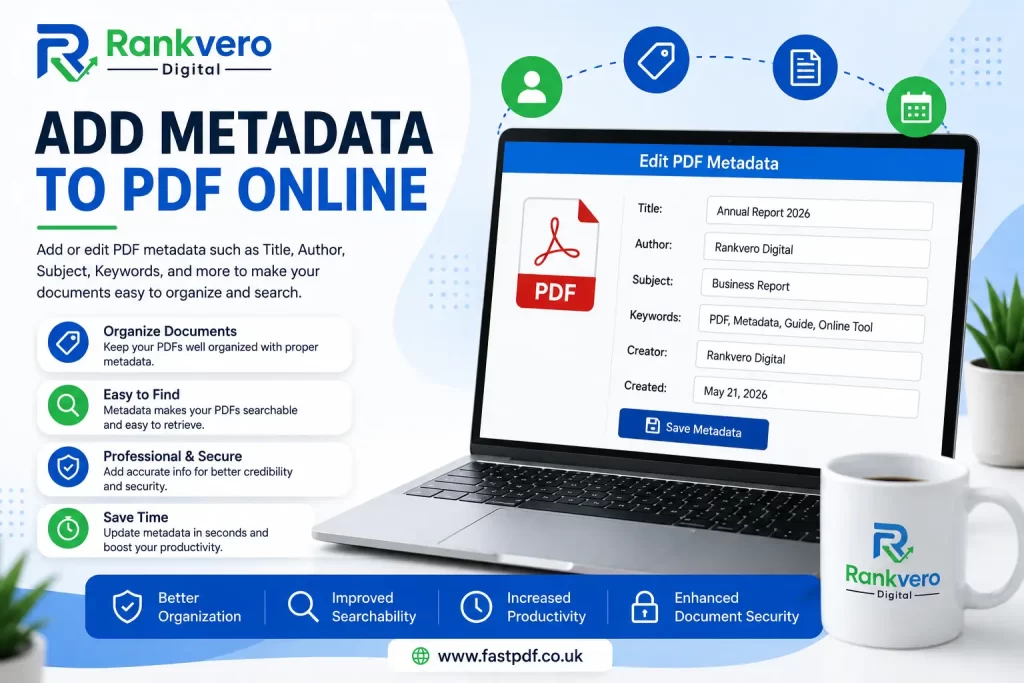
There are several areas where you can insert information into a PDF’s metadata:
Title
A descriptive title is one of the most important metadata field.
Example:
PDF Accessibility standards
For instance, a generic name like “document.pdf” isn’t as clear as “Guide to accessibility.pdf.”
Author
This field describes who wrote, created, or who is responsible for the PDF.
Example:
A. B. Writer or International Documentarians Co.
In corporate documents, ‘author’ often refers to the company itself, or the relevant team, rather than a single person.
Subject
This summary provides a concise explanation of the content of the document.
Example:
Business proposal
For a presentation-ready design doc: ‘Design for new user interface.’
Keywords
Keywords help define what the document is about for easier search and cataloguing.
Example:
Social media strategy, digital marketing, advertising
A broad topic, if suitable for. Make sure keywords are relevant.
Creator and Producer
These two fields typically explain which application generated the PDF. In fact, many PDF editors will auto-generate these if you do not.
How to Add Meta Data to PDF Online
An online PDF editor can make it easy to amend these elements of your file. Here’s how:
1. Select your PDF: Upload your PDF file to the chosen PDF editor. Additionally, ensure that you upload the correct version before modifying its meta data. Should your PDF contain any confidential information then you should review their privacy policy carefully before submitting the file.
2. Open the “Add Meta Data” option: Many editors refer to meta data fields as ‘Document Properties’, or a similar term like ‘Add Meta Data’, ‘Edit PDF Properties’, or ‘File Information’. Find this in the options or menu.
3. Enter information: complete the forms with a title, keywords, author, etc. That accurately describes your file, paying particular attention to the keywords given, for, it is also possible to include a file so that the latter is more precisely discovered with more complete metadata.
4. Before validating your new metadata: to avoid mistakes and so that the new meta-data file seems polished it is always worth to check again any details with a spell checker! This is important because some meta-data may be kept in legacy file.
5. Save the amended PDF: Download your revised PDF file. Finally, you can then ‘open in properties’ the PDF to check that your meta data has been applied correctly.
Best Practices for PDF Metadata
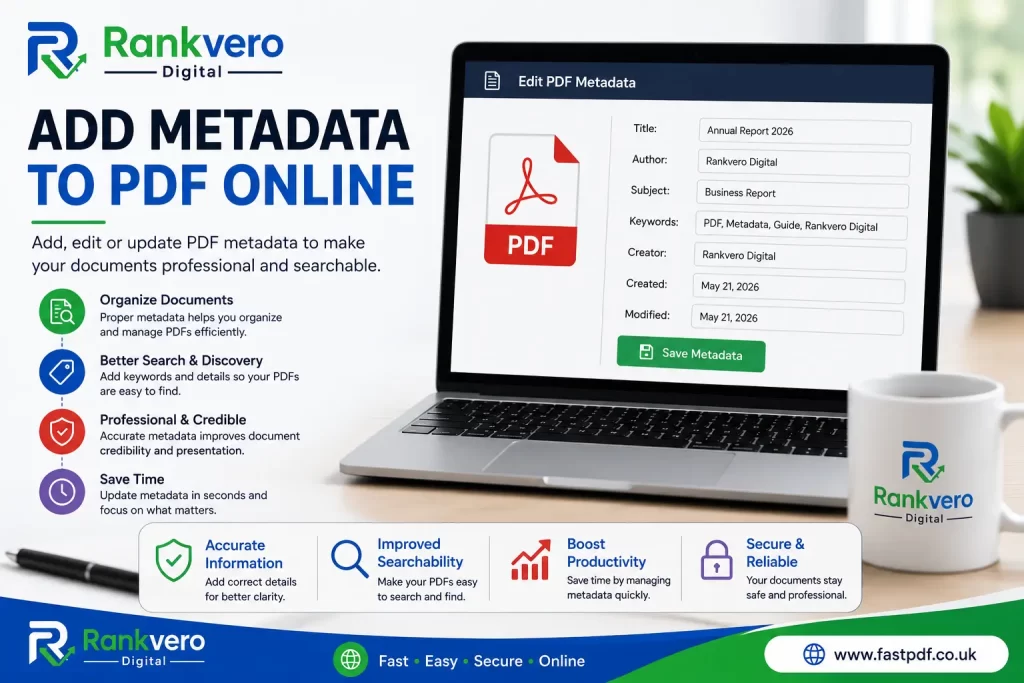
Whether you are the individual who must Add Meta Data regularly or for the first time, make the process count:
● Title relevancy – the title should describe the contents of the PDF and be easy to understand for humans and computer systems alike.
● Keyword relevancy – include search words and terms that describe the subject matter accurately – stuffing meta data will not get the article found.
● Consistent authorship: When possible, use a uniform naming convention for “Author” especially in a professional context, for consistent file categorization across larger volumes of documents.
● Examine existing data: Documents may arrive from different sources, some of which may include meta data. Inspect your PDF’s properties before overriding or adding.
● Clear irrelevant information: If meta data points to outdated content, or keywords are no longer relevant to the document, amend or delete as needed.
Visible PDF Information vs Metadata
It is important to differentiate what is on display within the actual PDF document, from the invisible meta data.
| Feature | On-Screen Visible? | Stored in Document Properties? | Primary Goal |
| Document Title | Yes | Yes | Identity |
| Author | Often, but not always | Yes | Author/Creator identifier |
| Subject | Sometimes, but not always | Yes | Content summary |
| Keywords | Rarely | Yes | Subject area identifier |
| Page Headers | Yes | No | Reader navigation and clarity |
| Page Numbers | Yes | No | Reader navigation |
| Creation/Date | Seldom on the page | Yes | File system/administrative info |
A great looking PDF leverages both visual appearance and the utility of meta data so that each document performs at every level.
Metadata and PDF SEO
Whilst SEO isn’t a primary function of meta data, it has a role in ensuring your digital content is visible, particularly when published on certain platforms that utilize PDF file properties. However, never add keywords to a PDF’s properties in a bid for higher rankings that isn’t relevant to the content. Ensure you Ad Meta Data naturally to improve discoverability – you’d be amazed what can be inferred in document data.
Adding Metadata to a PDF By Editing or Using an Online Service
There are several ways that you can access adding information to your PDF file(s) that will help the people who work with your files add additional information to them by way of metadata. Depending on how many files you’d have, it’s an open debate as to which process works best for adding metadata from a pdf.
| Method | Ease of Use | Best For | Skill Level |
| Online PDF metadata tool | Easy | Quick document updates | Beginner |
| Desktop PDF software | Moderate | Advanced PDF management | Intermediate |
| Document editor | Easy | Files in their source format | Beginner |
| Programming tools | Advanced | Automated workflows | Developer |
Online PDF Metadata Tools
When you need to quickly update properties in an existing PDF, online tools are handy. You can upload the PDF file, type your desired title, author, subject, or keywords into designated fields, then save the amended document. As a result, this approach is particularly useful for a one-off edit as there is no requirement to download and install special software. Before uploading any document with sensitive data, check the privacy policy of the service and how it will handle your file.
Desktop PDF Software
Desktop applications may give access to a greater control over metadata embedded within a PDF file. They often make it possible for the user to alter all available property settings, trace currently established document properties, simultaneously work on more than one file, or adjust the user to more sophisticated preferences of editing. Therefore, this approach is suitable for individuals professionally involved in handling PDF files at work on day-to-day bases, where they either write or edit PDFs for business.
Document Editors
If your source document is stored in a word processor (e.g. A Microsoft Word file), you will in most circumstances be able to amend document properties before creating (saving/exporting) the PDF. This is a good technique when you have only started writing the document, report or assignment as the word processor gives you complete control. However, the technique is not useful if you no longer have the article.
Programming Tools
The professionals and the technical experts can auto- update a bulk number of files with the help of programming languages and various PDF libraries. This can be a resourceful method to business users working with hundreds of files at the time. For example, the title, author, or even some related keyword, in all PDF files can be updated using a well-written program that helps the PDF creator. However, to ensure accuracy, testing of such automation workflow is required to ensure there are no gaps in terms of errors and incorrect updates of existing information.
Common Mistakes to Avoid when you add a PDF metadata
No matter whether you add it manualmente, online, on a desktop application, or via a programming script, the task must be properly done for the best use cases.
Don’t Use the Wrong, Irrelevant or Broad Keywords:
Many users often try to stuff irrelevant keywords in the metadata to make the document easier find. In fact, doing such is simply irrelevant to any user looking to get information on any of the topics contained in document; avoid such as much as possible.
Avoid Duplicate Words or Similar Tags
Using the same keywords multiple times and a couple words of exact description is annoying and doesn’t work for you. Instead, try to use varied keyword.
Stop using boring titles like “Unsaved, Untitled-document,Untitled PDFFiles,etc..!”
This does no help or gives ANY clue related to any aspect of the document from a person or a bot looking on that PDF file in your system or on the net. Be as descriptive as needed.
Update your author field: remove outdated references.
You can edit/ update a document’s author name (or set it). Old author records from templates or previously run applications may have stuck into metadata. Therefore, be cautious for this!
Make sure you don’t miss out any old entries
Ensure to thoroughly check all the metadata fields before you save a modified document or report. Sometimes if you edit one field, other information fields (previous ones) may get overlooked.
Ensure no private details creep in.
PDF property fields do not need to show up on document but can potentially reveal sensitive details about author and content. Thus; do consider what information you include.
Tips on how to Optimize PDF Metadata for Better Organization
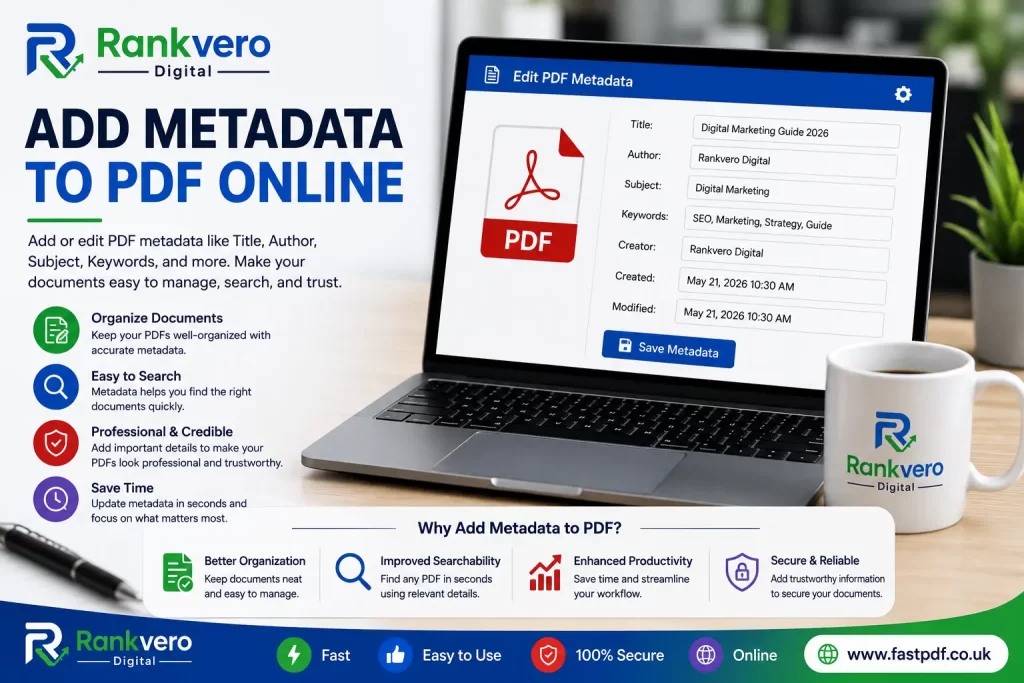
To begin, identify your desired title clearly; ideally something in line with the content of your report, guide or book. Next, insert a reliable name; it might be author, your company or a descriptive title for authors if no specific individual. In order to clarify the intention of each document, use the Subject attribute clearly, and add just a few concise and most applicable keywords to increase relevant visibility.
Example of the recommended process:
Title: 2026 Employee Handbook
Author: My Company HR Department
Subject: General guidelines for all employees
Keywords: Employee handbook, guidelines, human resources, company policies
This combination should not only benefit people by simplifying finding the PDF in the system but also improve relevance and searching on various search engines online.
Add a PDF Metadata for various types of Documents
Depending on the kind of document, a certain type ofMetadata is recommended.
For business-oriented reports, for instance:
You’ll want to include your company name as the author, the specific document title such as ‘Company Profile’ or’Quarterly Report, and the subject is essentially the report purpose.
For Academic papers:
Simply type in your research title, your designation, your university’s relevant research department, and pertinent keywords as applicable.
Ebooks / online published papers or writings
These, should contain the complete e-book title, author, subject related keywords and so on. In addition, these data have relevance with.
Technical Documents
Any technology document should always clearly mention the name of technology, company document authors and technical related info as mentioned above for each of them.
Company’s internal Forms
For internal use and records, one must make the title of the PDF clearly mentioning the ‘Type of Form’, ‘Its version if any’, ‘Company’s departmental name,’ And relevant subject info. Additionally, ensure to exclude the information not essential for general searches within and across departments.
Metadata Security and a PDF file
You’ll need to pay attention if your PDF file contains sensitive material to secure it using metadata. Some specific metadata fields might not be as evident from your document view but have potential to store useful data when documents were put to use for internal records. Information you can re-assess before public publishing a sensitive report include your author’s name, company name, the type of software and its version used to produce the report etc…
When such information becomes visible, one should reconsider removing from the document metadata, especial with sensitive documents and public use. Such kind of info has greater relevance when some document was previously created based on an internal company template with old authors or related company history associated. Such obsolete records found in data can prove helpful in many document workflow optimization or investigation use- cases; otherwise avoid embedding irrelevant (e g., old author records and personal data) information especially into a public view, public documents .
FAQ on Add a PDF Metadata
Can I Add PDF MetaData Online ?
Sure you can add pdf Metadata in online with ease to a variety of options available such as edit document, subject, writer and Keywords etcetera .
What Metadata SHOULD I Add to A PDF ?
We strongly endorse the use of title,author ,topic or the summary of document and relevant keywords for easier identification for human searchers as a bot like those online crawlers to quickly search and sort out documents. But keep them to your self , dont stuff up for no reason.
Does My PDF file’s Metadata Help with Google (SEO)?
Yes, adding relevant Meta data ( title, topic and key words..) in to your PDF helps bots to classify it among various topics. But Dont repeat same phrases or information it just do you good but doesnt help to reach your desired audience.. And don’t give them away.
May I change the Author of PDF : ?
Of course yes ,you always have options to changing writer of the document . Most PDF editors will permit you changing the Author information from any person or any department.
Can I write Keywords in PDF properties ?
Certainly ,you can add all your necessary keywords . Most pdf editors allow us to add text that comes with special properties of keyword for our PDF documents
Can a PDF metadata contain private information?
Yes . Pdf Metadata can and will retain private personal information that is often not immediately visible from PDF’s page document it’s a risk ,hence it is always important to review.
When a document owner changes metadata of pdf; can it affects the page- content?
Generally no, but always try to re-view your PDF after updating property for complete clarification as not all editions of such can operate same like so many online, desktop available pdf software applications and options .
Is there a means to delete or remove the existing pdf metadata ?
Certainly yes. Several PDF processing tools and programs allow you to remove or modify the exiting metadata. Overall, it depends on software and usage for individual edition in question to control.
Conclusion
Being able to add metadata to PDF is a rather simple approach to improving your PDF document’s discoverability and organization. In short, clearly worded title, author name, descriptive subject line and a few relevant keywords can describe your document much further without alter any aspect of it’s pages. Ensure these information are coherent with its overall description not filling it out.
In summary, it is better you choose an appropriate method to Add a Metadata for Your Document such online for infrequent use, while a desktop app might make good sense for advanced usages of these PDFs file types; on other hand, programming could serve the best by using Automation and optimize your bulk workflows.
A good quality PDF consists of the proper organization of Content, structure, relevant files names, and well organized documents metadata – combine this factors for your PDF’s proper usability and Share.
Enjoy More Free Tools
After you add metadata to your PDF, you may also need other PDF tools to prepare and manage your documents efficiently. With FastPDF.co.uk, you can access a range of useful online PDF tools for converting, editing, optimizing, and managing PDF files. Whether you need to convert PDF files, compress a PDF, convert images to PDF, or work with other document formats, these tools can help streamline your workflow without requiring complicated software installation.
Useful PDF Resources and Tools
For more information about PDF standards and document accessibility, you can also explore trusted resources such as Adobe Acrobat and the W3C Web Accessibility Initiative (WAI). These resources provide useful guidance on PDF features, accessibility, and professional document management.