
Drop your PDF here to watermark
Add text or image watermarks to every page — live preview before export
Watermark Applied Successfully
Add Watermark to PDF files easily with text, logos, or images using a reliable online PDF watermark tool.
A watermark consists of text, images, or patterns added to a digital file. It can provide security, branding, or personalization without changing the original content. A watermarked file contains a visual tag. Common examples include “SAMPLE” or a company logo. Use watermark images, text, company logos and so on to safeguard confidential documents, sales or marketing materials, certificates, drafts, and other files.
The watermark should be in view, but legible. It can give background information on the document. It can also indicate if it is confidential or restricted content.
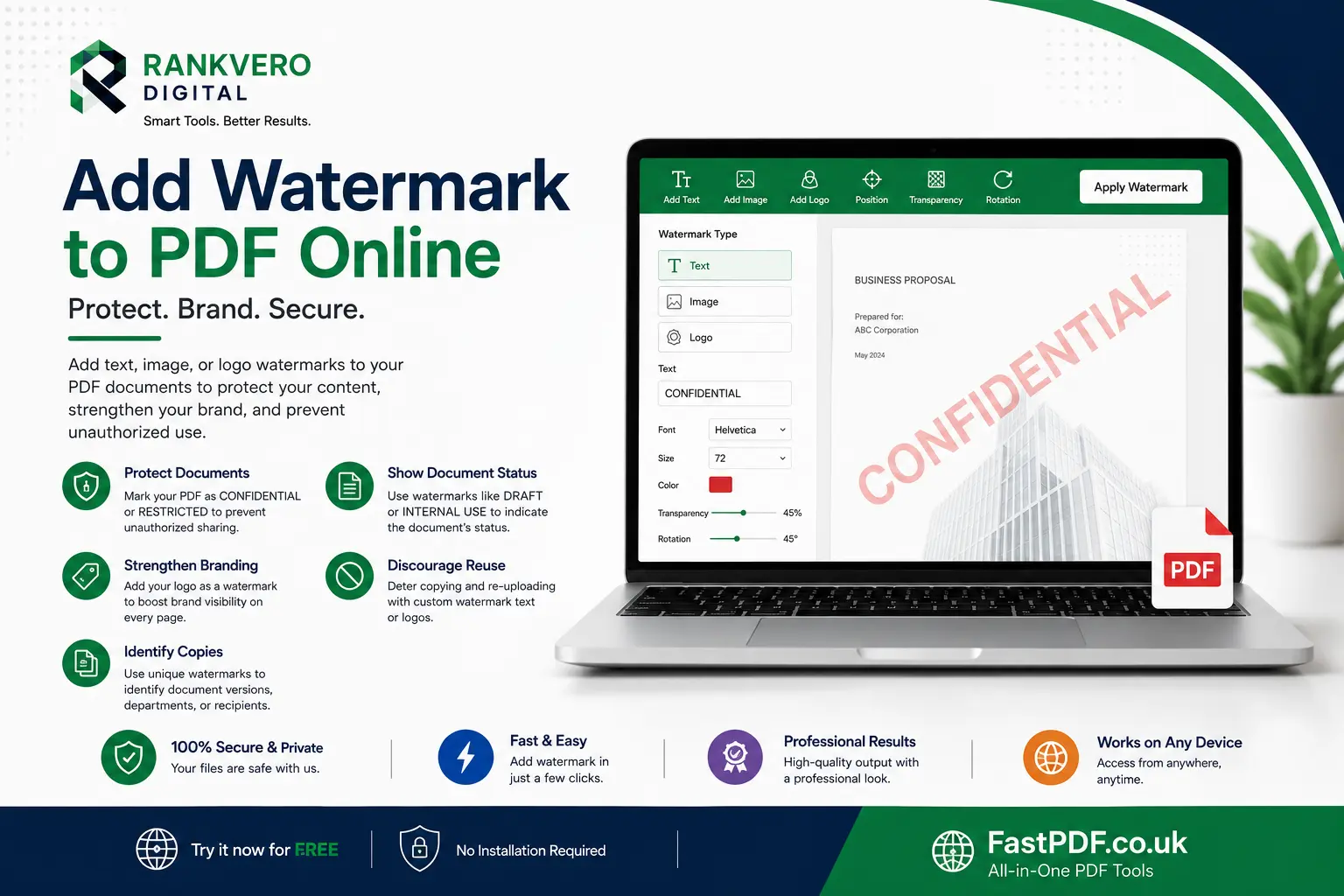
What is a PDF Watermark?
Basically, a PDF watermark is a layer added to, behind, or above existing text or content.A PDF watermark may be textual, graphic, image or logo. It can determine the author of a text, or indicate the function of a text. These are often used as labels such as Confidential, Draft, Sample and Internal Use. PDF Watermark provides the reader an allusion regarding the document as well as.
A list of popular text watermarks contains CONFIDENTIAL, DRAFT, SAMPLE, INTERNAL USE, COPYRIGHT, DO NOT COPY etc..
The PDF tool lets you apply a watermark to a single page or all pages while giving you control over its rotation, position, transparency, and size.
Why Add Watermark to PDF Files?
Apart from giving the document a professional touch, watermarks also help a reader to understand the nature of a document, thus offering several benefits.
Protect Sensitive Documents
A CONFIDENTIAL watermark tells readers that a document is restricted. It also shows that the file is not intended for general circulation. It is highly beneficial to business plans, financial documents and all other confidential reports. However, watermarks do not provide complete security because users can relatively easily alter or remove them. Therefore, protect sensitive files with access controls, encryption, and strong passwords.
Show Document Status
Watermarks can easily and clearly communicate the type of document you are about to preview whether it’s an already finalized, still developing or simply a prototype of a document. A DRAFT watermark, for instance can ensure readers do not refer to a working document and take it as the final output.
Strengthen Branding
A company’s brand visibility will remain high on various reports, business presentations and also marketing brochures, as the brand will continually appear on every page. A soft logo will achieve the purpose of branding, without compromising the document’s readability and elegance.
Discourage Unauthorized Reuse
Anyone would be dissuaded to Copy & Reupload documents and/or files once you place a trademark watermark text. It will be clearer to indicate the source when there is a Copier.
Identify Document Copies
Businesses could potentially have different copies of their documents depending on where and how they are shared using the different types of watermarks, that could represent departments, internal use, and several other things that would aid in identifying them.
Types of PDF Watermark
The ideal type of watermark depends entirely on what you aim to achieve. The following table represents the common types:
| Watermark Type | Common Use | Best Placement |
|---|---|---|
| Text watermark | Status or protection | Center or diagonal |
| Logo watermark | Branding | Corner or center |
| Image watermark | Visual identification | Center or background |
| Confidential label | Privacy notice | Header or diagonal |
| Draft label | Version status | Center |
| Copyright notice | Ownership | Footer or center |
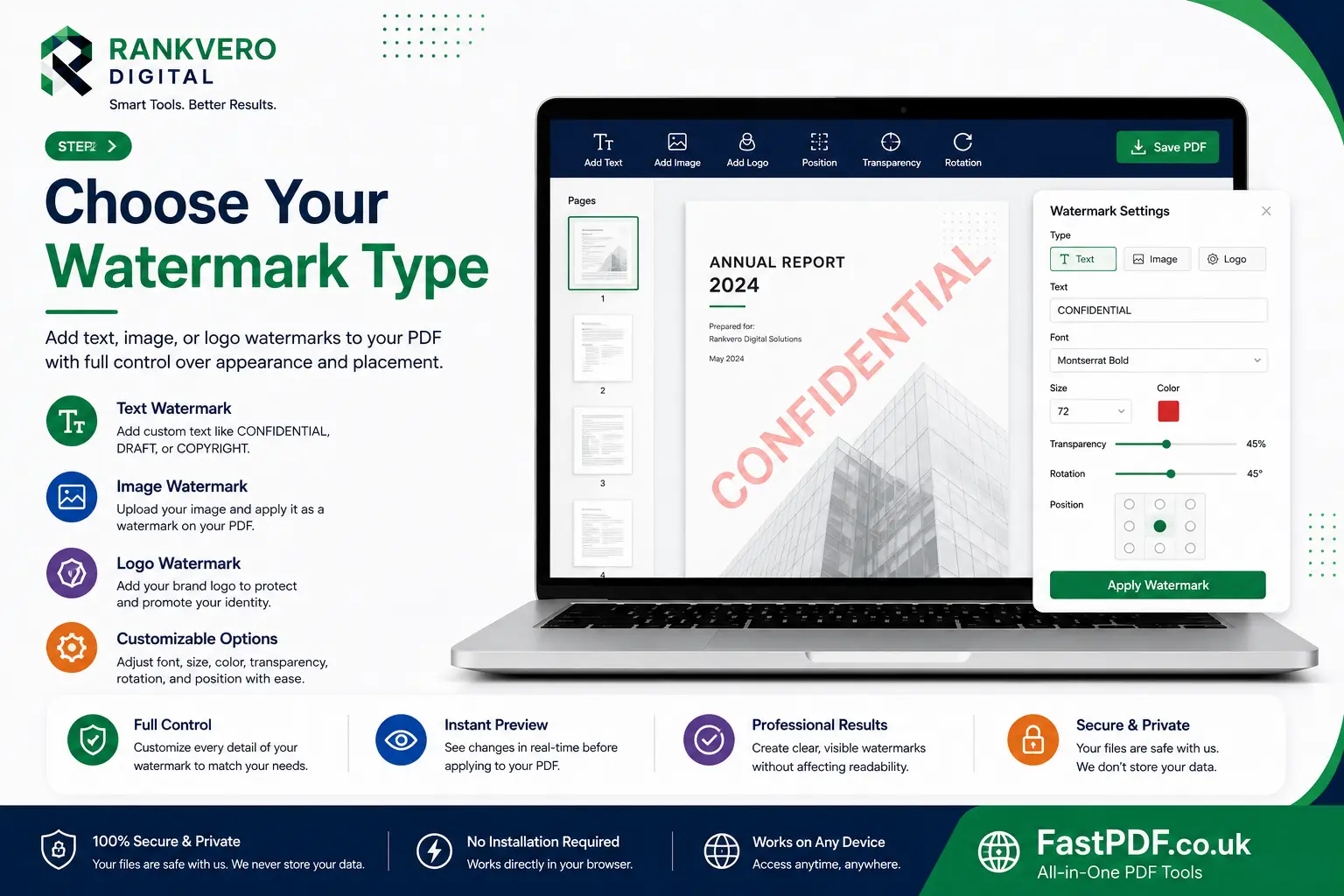
How to Add Watermark to PDF Online
When looking to add a watermark to a PDF file online, you must choose your preferred online tool, and follow its steps to add text or an image and this could be anywhere on the document that the author deems fit, but should also be able to work and maintain legibility for the entirety of the document.
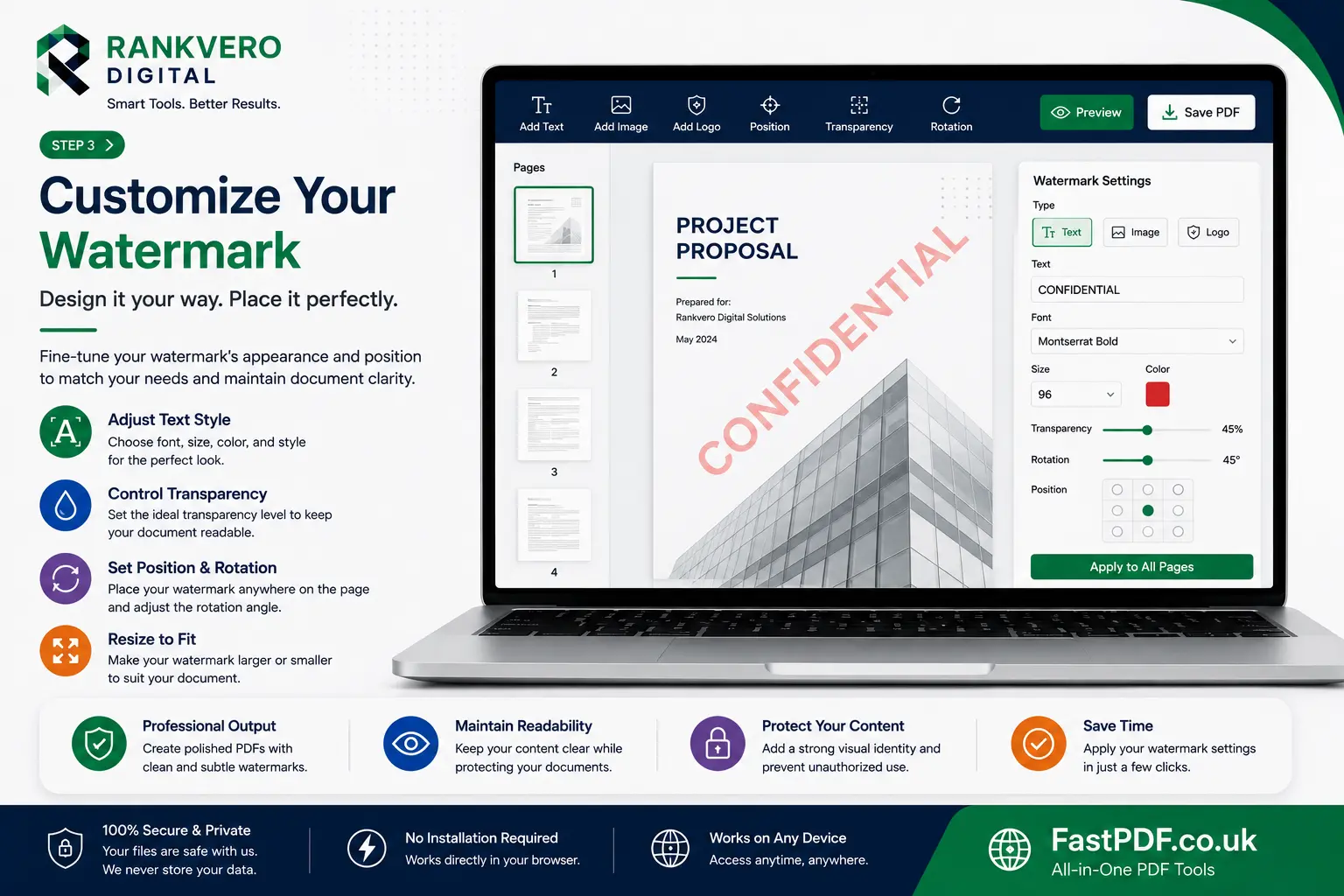
Step 1: Select Your PDF
Pick your desired PDF document you wish to watermark. Double check to see it is the correct version you wish to watermark, especially if it contains sensitive details; check to see if the site has a good reputation with privacy issues and see their service policies for handling files submitted.
Step 2: Open the Watermark Tool
Find and utilize the watermark feature within the software-various names and placements depending on the particular software program, it either allows text input or can incorporate the saved picture.
Step 3: Choose the Watermark Type
The decision lies in whether to add some text as is referenced above for items such as DRAFT and CONFIDENTIAL; or selecting an image which will define the company such as a logo, for example.
Step 4: Position the Watermark
This is where you decide where the watermark appears, this could be anywhere from the corner of the page through to the center of the document via the footer or header section. Corner placement can be discreet but you can also have the watermark diagonally positioned if you want it to span the entire document.
Step 5: Adjust Size and Transparency
Here you will get to control the size so that the watermark is not too large it doesn’t disrupt reading, yet not too small and completely unnoticeable. For text, you will also want to manage its transparency so it is not too dark, and it complements the document rather than covers important content.
Step 6: Select the Pages
Various tools offer the option to watermark single pages or the entire document. If you have a document with sensitive info all over it, it’s best you choose ‘all pages’ option. However, if you only want to inform readers that only the cover page is not finalized, it is still possible.
Step 7: Preview the Result
This is an important step, as you will need to read your document to ensure the watermark does not interfere in any way with the reading and the contents of the document. You do not want your watermark overlaying a signature, or a critical piece of text or a table for instance.
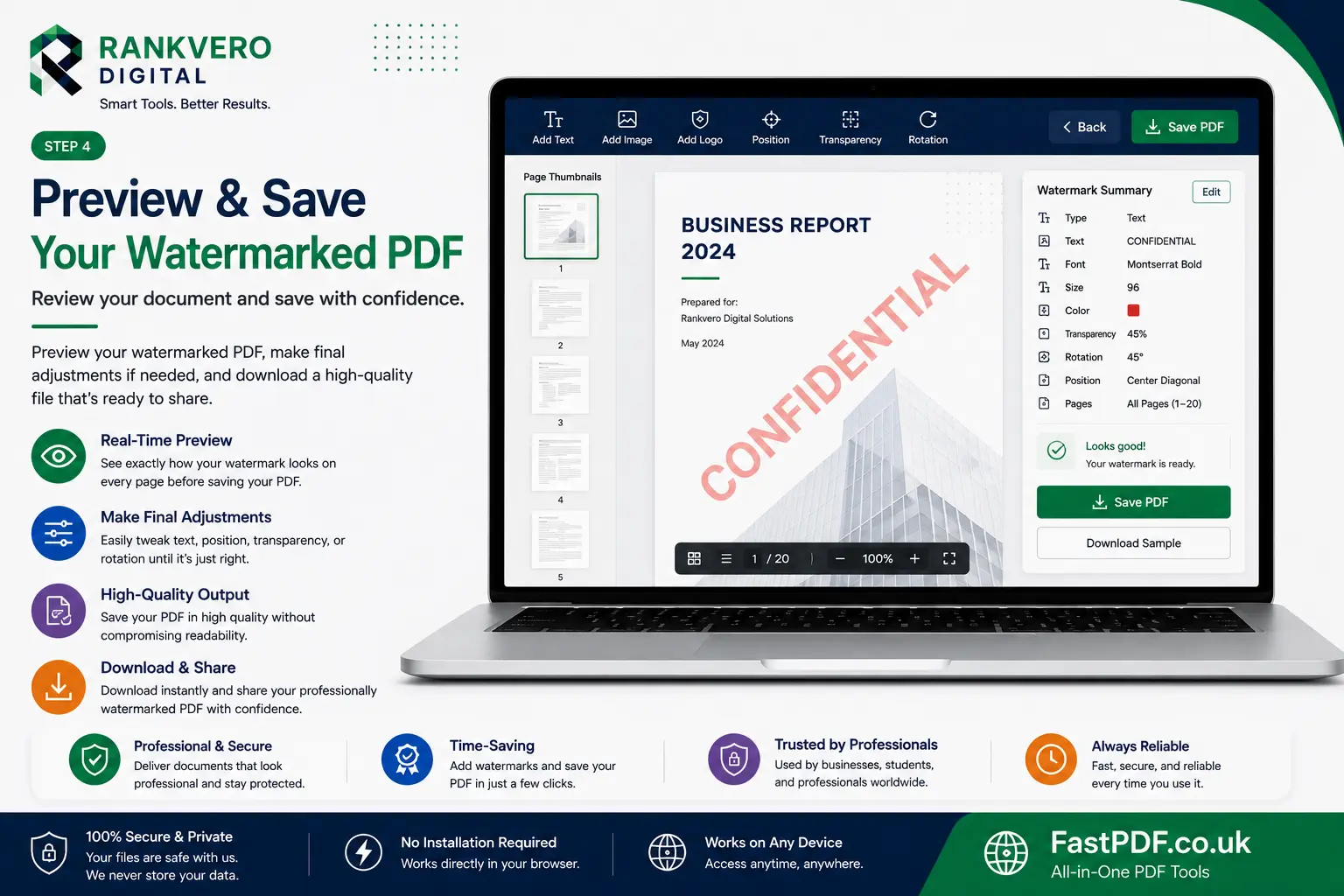
Step 8: Save the Updated PDF
Once the final preview is to your satisfaction, save the document, and verify that the watermark appears in your new document as expected.
Best Watermark Placement
The position of the watermark must be such that it would not confuse the reader. This also ensures that all the text in your documents is fully legible.
Center Placement works effectively with the watermark labels for DRAFT, SAMPLE and CONFIDENTIAL. Diagonal Placement helps to span over the greater part of the document. Corner Placement is best if you have smaller logos to display. Header or Footer placement is commonly used to display ownership like copyright.
Add Watermark Without Covering Text
If you do add a watermark to a PDF, watch out that it is not in the way of other content, including signatures, important text sections, and more. A watermark of moderate opacity in the center of the document or a non opaque logo in the corner will likely ensure this and you will want to preview across multiple pages.
Add Watermark to Multiple PDF Pages
Many watermarking tools will allow you to add watermarks to all pages so that your text, image, or logo appears on each page of the document. This is ideal for things like ebooks and for confidential reports and documents which the author wants clearly identified on each and every page.
Professional Watermark Design Tips
Below are the 8 tips to consider when creating a watermark:
- Keep text minimal – When working with text, keep it as simple and concise as possible. Short, common labels such as DRAFT or SAMPLE are most effective.
- Use readable font – Use a clean and clear font, or a good readable size.
- Use appropriate transparency – Ensure the watermark is visible but also that its transparency allows easy reading of your content underneath.
- Maintain Consistency – The size, colour, and transparency should all be consistent throughout the document.
- Match the Document – There will be times where you need a more professional feel than is achievable with certain watermarks, remember to always go with what complements the document that you are working with.
- Confirm Permissions – The watermark could potentially fail to deliver a message if you add it to document that does not have permission to carry the watermark you add, so be sure you have the necessary documents you are looking for.
- Proofread Everything – After adding the watermark to your PDF, carefully proofread the document to identify and fix any mistakes or issues
- Check Compatibility – Test the finalized document with several programs just in case it has issues with a few of the versions of the viewer.
Adding a Watermark for Specific PDF Requirements
You may need different watermarking techniques depending on the type of PDF document. What may fit best into a secured report for the use in confidential purposes, may have other things that may not fit into marketing materials and research works.
Using Watermarks for Business Documents
Businesses use watermarks to label their internal documents: reports, drafts, proposals, invoices and so on.
A business logo at the top of the page keeps branding uniform across your documents and a watermark like INTERNAL USE or CONFIDENTIAL should convey document status. Whether you choose a watermark for your business document, you ought always to use them unobtrusively so as not to clutter the information content.
Adding Watermarks to Academic Documents
Students, researchers and academic institutions utilize watermarks for their documents such as research papers, sample tests and certifications. A company logo or name might work as identification without it looking overbearing. Ensure you apply them after your institution’s formatting is all sorted out for formal works.
Using Watermarks for Legal Documents
Legal documents usually have sensitive content, including contracts, and sensitive agreements. Watermarking is the one step that identifies such papers like internal copies from those meant for external distribution and to the recipient for. A watermark should in no way be obstructing legal details or the legal document.
The Right Kind of Watermarking for Marketing PDFs
Companies use watermark logos on their marketing documents as a reinforcing way of identifying it. Watermarking in this case also acts as a way of branding on promotional files and documents. Make sure to incorporate a watermark subtly to the background.
Apply a Watermark on Your Draft Files
When handling draft work, it is common to get confused between draft document and the final product, and watermarks help differentiate them. A clear watermarked draft can come off as helpful and in preventing unintended use by outsiders as final work by adding a “DRAFT” watermark over your pages, preferably diagonally over a portion of the pages or over some main information like the text in a photo.
Watermarking Documents with an Image or Logo
In cases where text won’t suffice, there is image watermarking to count on. This involves adding an image logo to your files at any point (background, corner etc). Note the clarity and aspect ratio of the original images you use.
- Avoid scaling small images since they will look blurred.
- Transparent PNGs will provide an opportunity to also have the background showing through without distortion.
How to add a watermark with transparence
This element can either strengthen or reduce the intensity in which the watermark displays. While a watermark with no transparency may compromise the read ability of the document due to obscuring the contents, an excessively transparent watermark may be barely discernible. As for the case of this PDF document, some level of transparency is beneficial. Before you hit the SAVE button, review all textual content within the watermarked areas; if all are clear at normal zoom then it will likely work fine.
How to add watermark only on select pages
It is not necessary to watermark every page in your PDF files. You may require the watermark on pages such as: only on the front page; sensitive sections; appendix; cover page and any other appropriate selections. Apply it only on the selected pages or a certain page-range in order to give your PDF a clean look. Check the page range well before starting and to ensure no page is left over or to also make sure you don’t apply them on sections they do not fit on.
Add Watermark without Losing PDF Quality
Quality depends mainly on your provided watermark resource and your chosen PDF editing software. Always provide a watermark with excellent clarity and resolution; stretching out a low quality image or graphic can appear pixelated and unappealing. Use easily readable fonts when it comes down to adding text watermarks whichever size it is (just proportional with the pages). After adding and saving the changes check on the page and see if the text, graphics, and images within the watermarked area are still in focus.
Watermark Common Mistakes You should Avoid
Although it can sound simple, there are quite a few pitfalls you might want to look out for while trying to add a watermark.
Watermark VS PDF security
It’s crucial to differentiate the watermark aspect of showing documents data versus implementing the technical aspect of PDF security. Water marks will display the documents status and ownership. Conversely PDF protection features prevent people from gaining unauthorized access and prevent documents from being edited.
| Feature | Water Mark | Password Protection |
|---|---|---|
| Shows document status | YES | NO |
| Displays ownership | YES | NO |
| Restricts access | NO | YES |
| Prevents reuse (restricted acts) | Can Discourage | Can Restrict Actions |
| Encrypts Content | NO | MAY Provide Encryption |
Water marks help tell about the state of the documents that you work with, nevertheless they do not keep up information from getting duplicated or shared. It would therefore benefit to consider having the required protection features set on if your files contain sensitive information that needs safeguarding and secure usage. A notice stating the document can only be used for “INTERNAL PURPOSES ONLY” alone would not suffice should security be an issue!
Choosing the Appropriate Watermark type for your Document
Begin by knowing how your document purpose should be recognized. If a statement about “DRAFT” is suitable, a text water mark will be effective. When it comes down to brand recognition and integrity of the company’s brand, logo watermarks are preferred for the reaching of consistency in identity.
Finally evaluate the clarity versus the visual dominance of each option; your decision will be best aided by how easily visible the information displayed on the document’s pages is to everyone who opens it!
Don’t forget to test out different placements on at least several pages to make sure they have worked to the your satisfaction.
Frequently Asked Questions about Adding Watermarks
Conclusion
The option to Add Watermark is an efficient way for businesses to clearly identify documents, apply business branding and communicate specific requirements like draft versions and confidential status. While watermarks come in a variety of forms such as texts, corporate logos or other custom shapes, the main factor to remember when choosing and implementing these is how unobtrusive and visually appealing they remain and how well it matches the document’s integrity and clarity. The addition of watermarks increases their readability in the professional realm without taking away their initial appeal.
Use a reputable PDF converter with this software capability for an optimized user experience and excellent results.
For document’s bearing crucial data, the added protection that comes from robust encryption security features ensures an appropriate safeguarding of vital data even without watermark usage.
Enjoy more free online tools
When using more PDF editing tools, Fast PDF can be used to handle your documents online easily. You can include images to PDF, add blank pages to PDF or use other PDF tools to edit and organize your PDF files in a quick fashion. Visit Fast PDF to discover easy, rapid and secure online PDF solutions.
Helpful PDF Resources
For more information about working with PDF documents, you can explore trusted resources from Adobe Acrobat. You can also learn more about PDF standards and accessibility through Adobe PDF resources. These resources can help you understand PDF features, document quality, and accessibility best practices.