
Drop PDF file here
Remove blank, empty or near-empty pages instantly
Learn how to efficiently clear empty pages in PDF files
A Blank Page Remover allows you to remove blank pages from a PDF without affecting any other info. You receive a scanned, Word to PDF, combined-PDF, or large report, and while it‘s useful there‘s a blank page or two that accidentally enters at the end of each section. It doesn‘t seem like an issue but it‘s jarring and increasing the document‘s length and scaring people into 4, if not 8, lines per report.
If you do any sort of work in your day with sheets of scans of your forms, scanned docs, invoices, reports, homework, business critical PDFs, then a page cleaning function will probably save you heaps of time. There‘s nothing like going through every page of a whole bunch of PDFs and removing a bunch of blank pages you don‘t need anymore but a PDF batch/ page cleaning pipeline could iron that out.
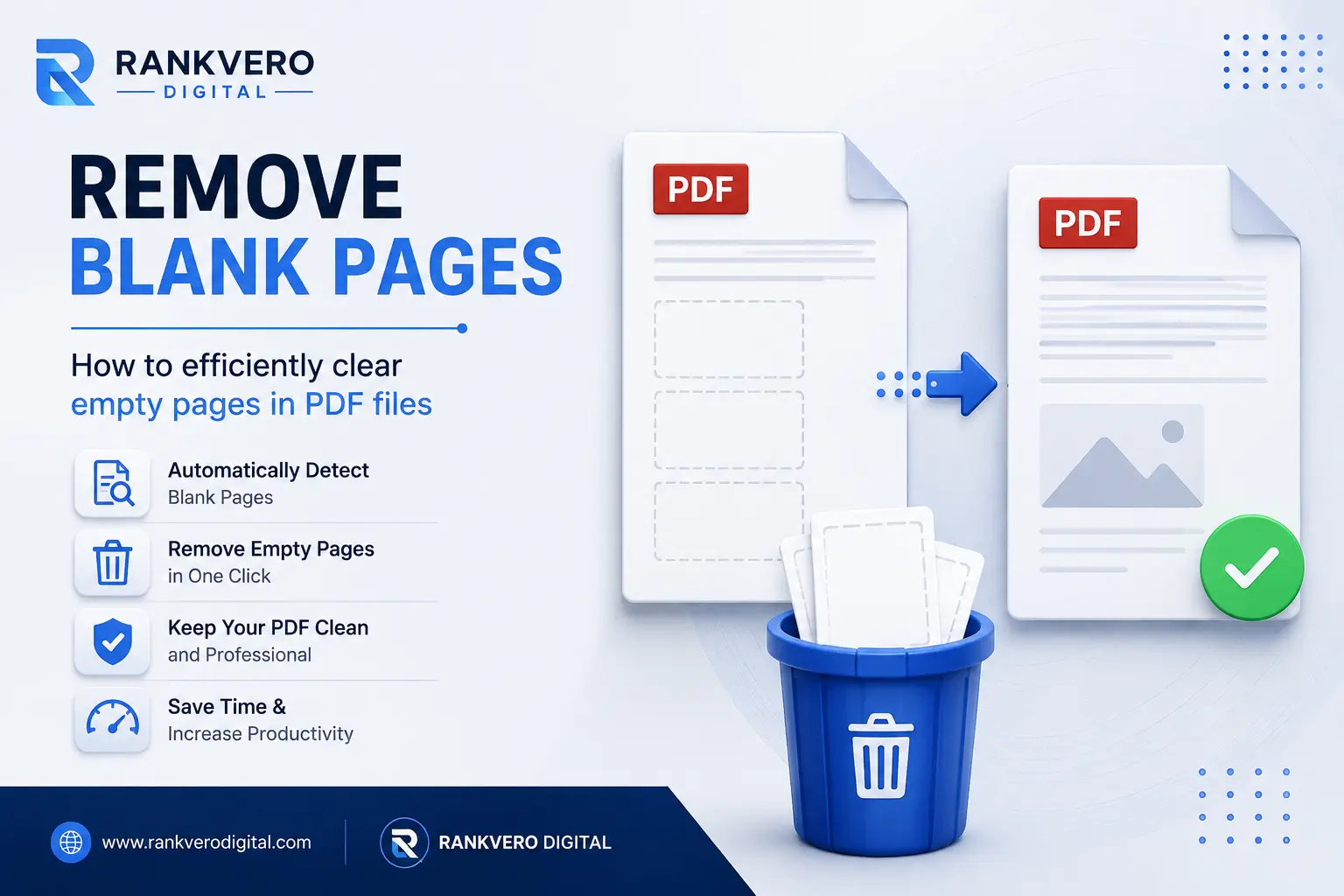
What does Blank Page Remover do?
Blank Page Remover is a class of PDF tools which remove blank pages from PDF documents it can locate the blank pages by searching for persistent data that is visible to the user and removing those pages. This can be accomplished by analyzing the data on the page looking for text, images, pictures, etc. Or simply analyzing what appears visually.
The concept here is that we would dispose of the useless blank pages and keep the usefulness pages in ascending order of page number. This is most likely to be encountered when you are working on huge document that comprises of dozen or hundreds of pages or so, for example you might have a duplex duplex scan of the back side of the pages to get pages also on back side of page as well so the scanner has produced the same blanks on which you would be interested only the blank bits and so they would not be used anyway.
But an almost blank page may right now, in fact, be not a completely blank surface. Weak logo, page number, imprint of the stamp, the artifact picture background, or almost anything you can‘t see at the moment can be ID item. Always be sure very sensitive files before use.
What leads blank pages to appear in a PDF?
Several common situations can lead to unwanted PDF pages:
Scanner Creates Blanks
Duplex scanning could be the offender. When the scanner encounters a blank side of a scanned document page the scanner will record a blank and insert an entry in the final PDF where you might expect the page to be blank. One content page will have a blank following it.
Word Documents Add Blanks
Unnecessary pages can pop up because of Word formatting problems. Too many paragraph returns, page breaks or difficult layouts together can move to a new page. Microsoft offers description about additional blank pages can appear in a Word document.
MergePDFs inserts the blanks as well!
Putting lots of PDFs together that also contain internal blank filler pages or chapter-dividers in between will mean that putting it altogether will simply concatenate empty sections also. Which will increase the size of the document when it is not needed.
Format Changes
Conversion of presentation, spreadsheet, or some text based-file format is outputted to a PDF can can cause extra pages being added. This can depend on the size of pages and the sequencing scheme.
Additions in the manual were as follows
It is possible that someone might insert a blank page accidentally while doing a standard reorganization of a larger file. Once saved, the unnecessary page is incorporated into the PDF until manually removed.
How PDF Blank Page Removal is Done
Modern PDF cleaning tools to have a very simple approach they will: 1. Load the PDF 2. Find out whether any of the pages have something interesting on it 3. Let you delete empty selected pages 4. Output a clean file.
The real sensing method used by each application will vary greatly depending on how sophisticated it is and its emphasis.
Some applications utilize straightforward text parsing. Others may utilize imagery or even graphical detection methods. State of the art approaches use a combination of these methods in order to achieve a better separation of visually blank pages. For example, a text parser could discover that a page is blank in some cases where images would not.
This is a very serious difference: a “nearly blank” with its watermarks, light logos, written notes in very weak ink and even very faint stamp-printings will come up as contents on some mechanisms. So check very closely.
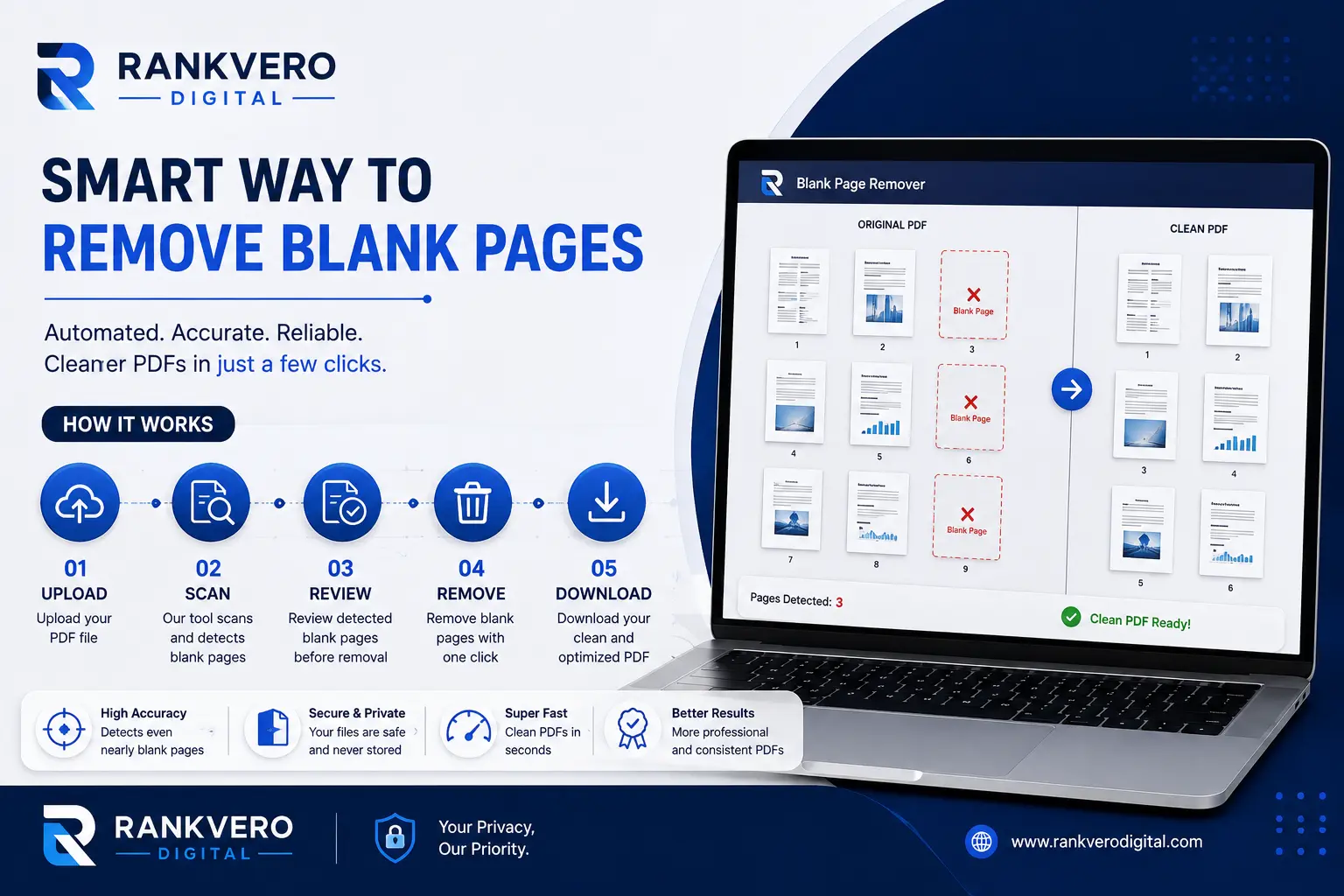
Basic Procedure:
- Upload the PDF: With the application any PDF document could be uploaded.
- Check pages: Run the.アpp. To see candidates.
- Review results: DO NOT attribute to yourself, but instead review what has been pronounced as a candidate!
- Choose and delete: Focus just on those that are certain: delete pages and reproduce your new version.
- Re-check: open a new file and read through the missing parts to the start. Make sure you have not lost or confused anything.
It is good to keep the initial copy of the document and clean the data and document in case the data is deleted inadvertently.
Removal of unwanted web pages: online blank page clearing compares to manual removal of excess pages
Both techniques can be successful depending on the use case however they have a slightly different set of advantages:
| Method | Application of mixture suitable used | Positive feature Limitation |
|---|---|---|
| On-line Blank Page Remover | Quickly cleaning up documents | Fast and easy User should examine its privacy policies meticulously |
| To delete unwant page by hand | And any documents with a maximum of 1-2 wasted pages | Total accurate control Requires a prolonged period for extensive documents |
| Desktop PDF editing software | A professional office has to | Perform training with more refined data distributions/levels. Overall easier to buy licensed software may need to do this |
| Automative Empty page detector | Large, scanned documents | Great time saving potential,> Double-check eg, near-empty documents |
Adobe Reader (with purchased features), for example, has the “Organize Pages” tool. Just select page thumbnails, hit delete and then save the new doc. But on big documents there is no beating automation for speed, as long as its settings can be made just right for the doc type.
PDF Empty Page Removing – Howto guide
Open a document that contains unwanted things: whatever it is digital (Word file that like being saved as PDF); or scan result. Etc. which you believe you have to process with a clever tool that seeks off unwanted page space.
Open the file: Go to tool. Then select your document to have the cleanup. Remember, if your document is very precious it is wiser to produce a original one first.
The application will do the analysis: Let it run through contents as eagerly as it can. It may be anything and essentially include searching by text strings, images and graphics on a page.
Verify the selected records, none on validation. Never hit cancel, always make sure you verify all the listed pages on each document you want erased! Anything that is even remotely visible- logo, stamp, script, anything else ‘graphics’ might cause a program to report the entry as ‘text’ so the viewer will have to visually verify it also.
Clean by deleting wanted entries: Who? Select the entries to delete and initiate the various delete functions. You finally save the newly created PDF.
Re check re confirmed pdf content: Open the new PDF from the first article. Check from the start of your PDF clear through the pages you edited, to check headings and information on the paragraphs before and after the parts you edited have been left intact to make sure you haven‘t missed subtleties or clues.
When should I ever use PDF Cleanup (Delete Empty Pages)?
A PDF cleaning app will suit very well then when waste pages get in between work documents and work processes:
- Contracts displayed with white/blank reverse pages
- Report. All company records are stored and filed under the Director Yau‘s control. There are many forms of company records, including the following:(company reports)
- Student essays or work.
- Business receipts invoices
- Legal documents This term is the umbrella term for workers’ compensation claims, insurance documentation, and other legal paperwork.
- Digitized records. All paper work has been scanned to enable quick access and instant retrieval of archives.
- Saved: none Files changed from Word: Content formatting was lost when converting between formats.
- A collection of different PDFs
- Packet sending applications and query forms
- Training manuals for staff and employee
- Exported presentations.
- Digitalize books
- And more.
This reduces not only the disk space but also the time. It is impossible to work with large files if they contain unwanted information.
Important Note on Delete Button & Visible Empty Pages
This is undoubtedly the crucial point to consider when applying a Blank Page Remover.
Most of the PDF papers (as novels, or even legal docs) have cut-away white/blank pages. For example, when a new chapter begins, the first page must be at a right-hand paper, so the previous lying one must have been totally blank. You will observe it while searching through dead blank pages…
But is of course so do not want to go.
Perhaps a form just reserved blank areas for hand written entries at the end.
Be sure you understand why this page is empty before clicking on “Delete.”
The Safe Workflow:
Using Detect Review Remove Verify Automate the detection of the offending pages, human verification and remove the unwanted sheets. This is a good workflow to use with contracts, financial, academic, and other files that it is important to keep a complete record of pages.
Scanning PDF Blank Page Cleaner
One additional complication with scanned material is that a blank sheet can be saved as an image. This results in a page that is entirely white, and which consists of pixels that the scanner has produced even if the paper really has contents or nothing on it. The noise of the scanner, the texture of the paper, bleed-through, weak lines and shadows all contribute to this. Latest advice about ‘cleaning up’ PDFs is highlighting the distinction between an empty page and a white-looking page. To accommodate this, an emptypagedelete() function should give you an opportunity to examine the page before deleting it.
Removing Blank Pages from PDFs in Practical Terms
There are many advantages to tidying up one‘s document. Better Reader Experience – Navigation is made infinitely easier, as the reader will be able to jump straight to the required section, rather than flicking through loads of unwanted pages. More professional – Clearly tidying up a document makes it look much more professional and business-like than the unedited version. Cheaper printing – Should one need to print and reproduce a long document, an optimal PDF may save unnecessary costs of paper and copying. Faster Review, analysis and processing – With less paper to process, navigating through it can be completed more rapidly, also speeding the analysis of lengthy and scanned PDF files. Tidier digital Filing – digital libraries can be quickly purged of any unneeded pages, easy to tidy-up anyway. Better Sharing experience – Forwarding a streamlined file, provides a more productive experience.
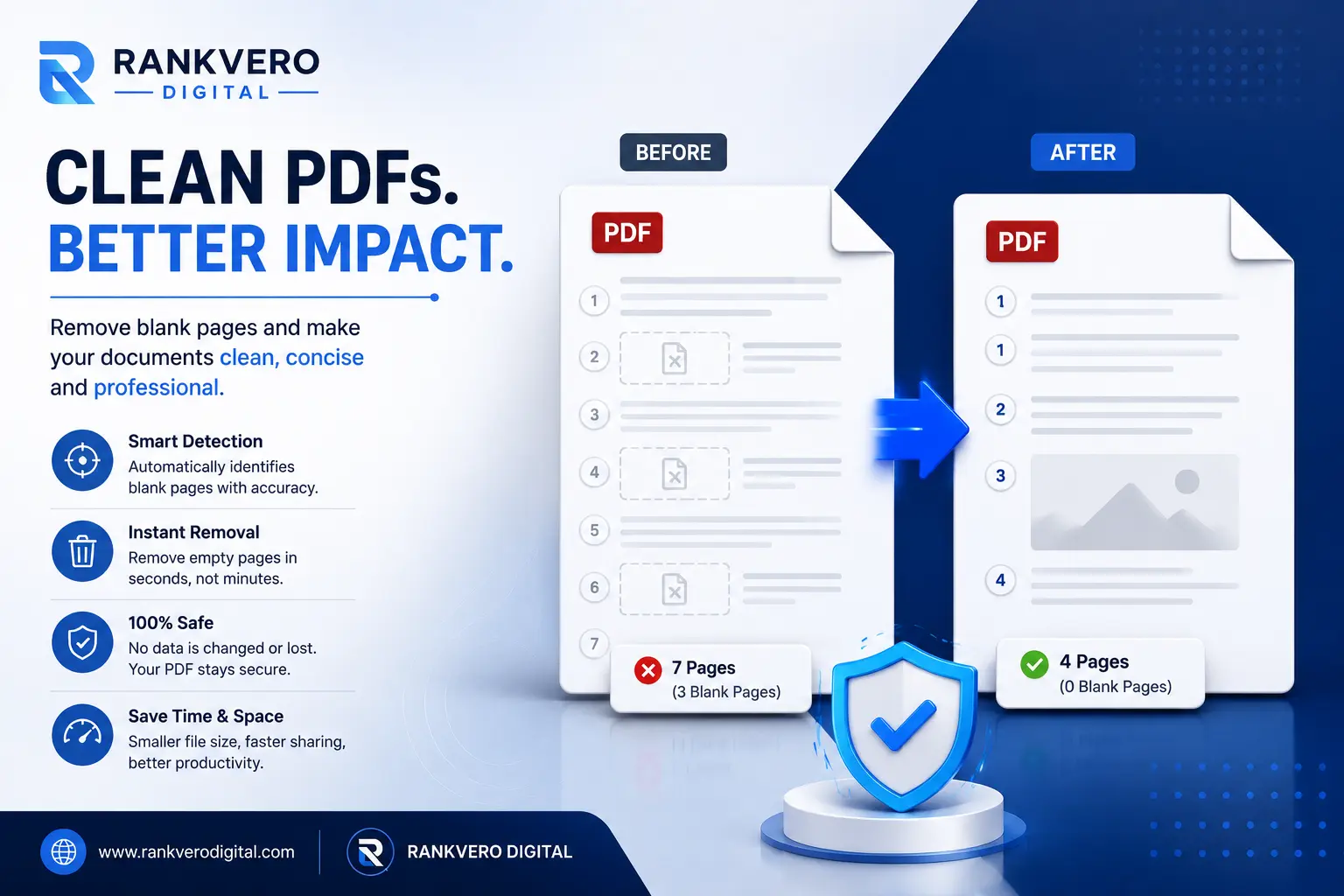
The Best Way To Remove a Blank Page From Your PDF Files By Using a Blank Page Eliminator.
Most users are capable of locating the page within a PDF file to delete and executing that deletion in the document. However by following the correct procedure, it is possible to do this in a way that accomplishes the deletion without corrupting any data. Almost always, the best method is to scan through the original file, select and check exactly what files need deleting, delete and then check through the final copy
Blank Page Removers vs. Manual Deletion
Automated blank page remover can be of great help for a larger number of pages of a document. Still, a biassed approach by the operator may prove to be useful at times, for instance in case of faintly scanned pages, pages showing very subtle watermarks, pages with headers, footers, separator, or odd page structuring. When is the use of automatic removal justified?
You have a file scan of a lengthily-scanned document with numerous blank fronts-and-backs.
It is very long. This document is…
You seem to go through the same process of cleaning up similar documents over and over.
you notice a pattern with the scanning and blank page creation. Manual deletion can be better when:
Could be longer.
A few blank pages has been deliberately inserted (used as a separator, for example).
This is confidential legal or financial information.
The page when scanned is very light and it‘s possible that there are fainter elements that have gone unseen (as they would be based on nether regions of the page) previously. The safest and most practical method of doing this is using the blank page removal function built into the software and editing for the rest after
How to Find a Good PDF Page Cleaner
While there are a plethora of free blank page removers out there, they can be of varying quality. A good PDF page cleaner will will assist in deleting pages for you, in a clean clear manner, without disrupting the original file. When selecting a blank page remover, ensure it possesses the following:
A2. Reliability of marks on the page: Is it consistent in identifying actually blank pages and pages with very faint flecks?
Ease of use: is the interface simple and easy to use, even for those only using it from time to time?
Preview function: Does it preview the pages that is about to delete or not?
Compatibility: Does it work with all kinds of PDF formats?
Privacy: If you are working with sensitive information, check the privacy policy of the site to make certain your files are protected.
Output quality – will the retained document print intact with the same text, format, images, sequence of pages?
Privacy When Cleaning PDF Files
PDF documents tend to contain personal, and or confidential information, such as names, addresses, bank details, legal contracts, and personally identifying data. If you are planning to use an online PDF page cleaner you should read the privacy policy thoroughly, find out how your files are saved, how long they stay there, and whether or not they will be processed by any software or humans. Always use an offline PDF cleaner for sensitive documents, and never upload any to websites which appear suspicious, no matter how fast they claim they are.
Common Misconceptions in PDF Page Cleanup
Even simplest of processes could turn, if are not following procedure properly. Watch this standard mistakes outlined below and clean up your PDFs successfully.
Removal of purposeful blank pages: While blank pages are usually caused by errors, some may be purposeful. A blank page after a table of contents page, for example, is often used to format the document. Check each page before removing it.
Original PDF disappears: After removal pages, you can‘t save the page in the modified file. Make a backup copy of the original file.
Page numbers Printed page numbers in a document may not automatically repaginate if you delete physical pages. For instance, a file that initially shows 8 of 10 pages can“t thicken itself to display“8 of 10” after you remove page 5.
The “pixels, shadows, faint text or watermarks” can still be seen on the white pages. Don‘t anticipate things to look as true, click whenthey don‘t seem right.
If you choose to leave the final review until after the clean-up: Open up and manually examine the final document. Be sure to include all the elements and maintain the sequence.
Blank Page Remover vs. Page Deleter
Both terms can be used, yet they may also differ in function. A PDF Page Deleter would appear to allow you to fairly arbitrarily pick what page or pages you want to get rid of from a file, a Blank Page Remover would be more specialized in providing you with a list of pages that are potentially blank or unnecessary. For instance, if you were using an Adobe Acrobat there are options that enable you to select and delete when you feel it necessary, but in more advanced pdf cleaning software you can also find an automatic detection of blank pages. A blank page remover can go through a whole batch of scan back-sides in a fraction of the time of doing it by hand.
Tips for Maximizing PDF Clean-Up Results
For a clean, professional PDF that preserves all essential information:
- Create a backup of your original PDF before beginning.
- Review each page marked by the blank page remover and delete the ones you don’t need.
- Observe carefully pages where there is a faded mark or a strange appearance.
- Discard only all pages you are sure you will not need:
- Ensure the page order is still coherent and the page numbers are correct.
- Is able to keep the headers, footers, tables and text.
- Open it as a PDF in a PDF reader for a final read-through prior to passing it on or archiving the final file.
- Save your cleaned document in a new file so as not to overwrite the original. If you go through these six steps, you will have a professional, clean document.
FAQs
Practical Example
Let‘s say you need to scan a very important 200 page paper; however, almost every page has something on only one side. It would take a lot of time to go through and delete all of these empty pages manually.. Culling all of those blank back pages would be an extremely time-consuming undertaking.
You can also scan more quickly by using a page cleaner that will flag the pages in most probability blank. Once the user has gone over this list, he can select all the pages that really are blanks by clicking on them, and remove them.
This method makes handling documents easy! You can turn what was a huge document into a small, easily manageable file.
How ToolWeb Can Help You With PDF Management
Use of documents is usually not one-step. You might have already cleaned blank pages of a PDF and now there is always a need to convert it, sort pages, pull out information or change layout for use in other way.
Browser pdf software at ToolWeb To save you time, our browser pdf software consists of the following tools.
Based on how you would like to work with your document, might think about using our PDF to Word conversion service or other format conversions prior to more work like merging multiple PDF‘s.
By carefully selecting a tool at each stage of your workflow, you have the flexibility to decompose your document and produce exactly what you want.
Expert Tips for Professional PDF Cleanup
The trick to working uniformly with documents is to develop a routine you use. Instead of randomly clicking-and-purging steps, develop a work flow to make cleaning your page (and working with documents in general) more consistent:
- Original PDF (Backup)
- Detection
- Human Review
- moval
- Export
- Quality Check
- Final SharingRe
This as shown follows to the EEAT (Experience, Expertise, Authoritativeness, Trustworthiness) model as it has a priority on accuracy above time-saving. Allow the automation tools do the “screen scraping” but you are The one who has to treat the document afterwards. This care is more than necessary when handling documents from the law, business or school world.
Conclusion
A Blank Page Remover can perform a fairly mundane but very necessary task of finding and erasing blank pages from your PDF document. If your PDF file appears blank as a result of the scanning process, conversion, section breaks, page breaks or coming from a merged file, getting rid of unneeded pages can be of great benefit as it not only cuts down your file size but also makes printing, viewing, and navigation much easier and improves the overall appearance.
But try to avoid autodetection at all cost. A blank page could be the result of a faint text, a watermark, a page number or the corpus’ structure. Better let the software mark the probably blank pages, examine them, save a copy of the document and re-examine.
Regardless of whether cleaning only one document or a large digital archive, finding the correct page cleaning workflow will enable you to become efficient and cleaning document(s).
Explore More PDF Tools
After removing unwanted blank pages, you may need other tools to manage your PDF files. Try our PDF to Word Converter to edit PDF content, PDF to JPG Converter to convert pages into images, JPG to PDF Converter to create PDF files from images, or PDF to Excel Converter to extract data into editable spreadsheets.
Useful PDF Resources
For more guidance on managing blank pages and PDF documents, visit Microsoft Support and Adobe Acrobat Help. You can also explore Adobe Acrobat’s PDF tools for additional document management options.